


USB-C ports may stop charging due to several factors, including physical damage to connectors, low-quality cables, or debris obstructing the port. Inspect the port for bent pins or corrosion, and clean it gently using compressed air. Additionally, using high-quality, USB-IF certified cables guarantees optimal performance, supporting power delivery up to 100 watts. Outdated software or drivers can complicate recognition, so updating them is vital. For a thorough resolution, explore effective troubleshooting techniques to restore functionality.
Key Takeaways
- Inspect the USB-C port for debris or physical damage, as blockages can hinder charging functionality.
- Test your device with a known-good cable to rule out faulty cables as the source of the issue.
- Check device power settings and update drivers to ensure optimal USB-C performance and compatibility.
- Consider potential power negotiation issues between devices, which can affect charging efficiency and capabilities.
- Regularly clean the USB-C port and invest in quality cables to prevent future charging problems.
Common Symptoms of USB-C Charging Issues
What indicators can signal USB-C charging issues? Users often observe that their devices fail to recognize the charging connection, as evidenced by a blank screen or a non-responsive battery icon. Additional symptoms may include slow or intermittent charging when connected to specific charging ports or cables, despite others functioning normally. Occasionally, a device might incorrectly attempt to power another connected device, indicating a reversal of power delivery negotiation. Moreover, physical obstructions in the charging port can hinder the connection, causing overheating or malfunction. Software-related issues, such as power-saving features or outdated drivers, can complicate these charging concerns, necessitating troubleshooting steps like resets or updates for different devices to restore proper functionality. Modern PD 3.0 technology should enable compatible devices to reach 50% charge in 30 minutes, so charging speeds significantly below this benchmark may indicate a port issue.
Identifying Physical Damage to the USB-C Connector
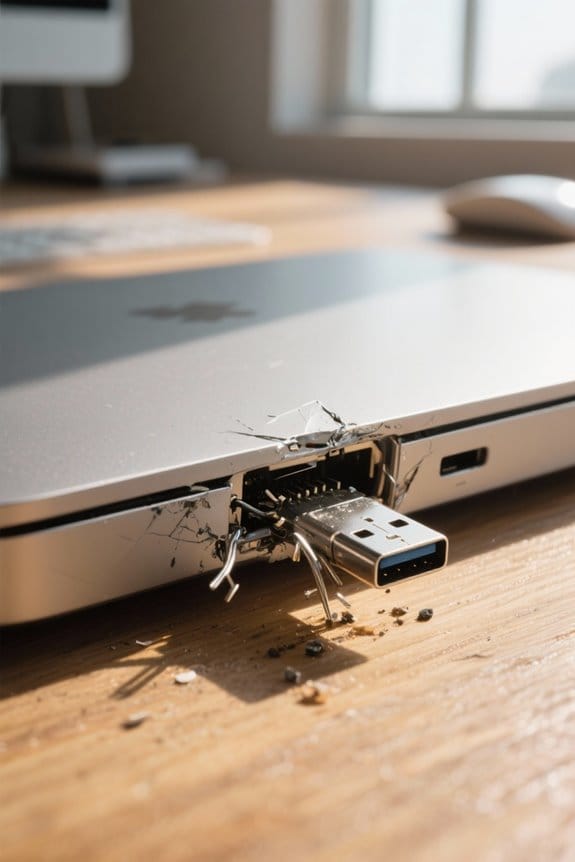
Identifying physical damage to the USB-C connector is crucial for ensuring ideal device performance and reliable charging capabilities. Users should closely inspect the connector for visible signs of physical damage, such as bent pins, cracks, or corrosion. These issues can disrupt the connection and prevent the device from charging effectively. It’s essential to utilize good lighting to examine the USB-C port’s interior, as even minor debris can inhibit functionality. If large particles are detected, a toothpick or similar tool may be employed gently, ensuring no internal components are harmed. In addition, if a new cable fails to establish a connection, testing with another known-good USB-C cable can help determine if the connector itself is compromised. Quality USB-C connectors include over-current protection to prevent damage during charging and data transfer operations.
Cleaning Your USB-C Port for Optimal Performance
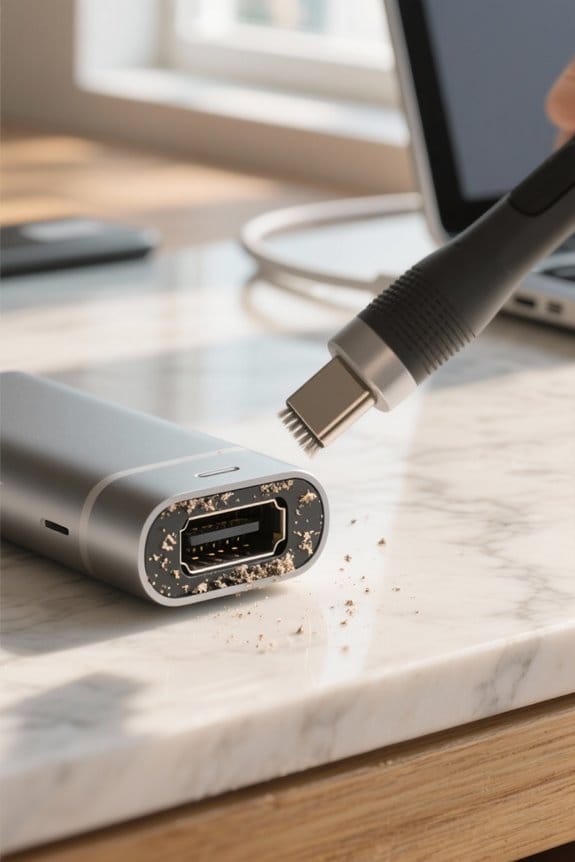
Maintaining a clean USB-C port is essential for ensuring devices operate at peak performance, as even small amounts of debris can hinder connectivity and charging efficiency. Users should inspect their USB-C ports under good lighting to identify dust, crumbs, or other foreign materials. For larger debris, carefully using a toothpick can effectively remove obstructions without scratching internal contacts. For stubborn clogs, compressed air provides a gentle solution to dislodge dust without any risk of damage. Regularly cleaning your USB-C port can prevent potential charging issues since foreign matter can disrupt power negotiation, compromising battery performance. Additionally, it is prudent to check the charging cable’s connector for bends or damage, which can also impact overall functionality. Modern spark-proof technology in advanced charging devices helps protect against electrical hazards during connection and cleaning procedures.
The Importance of Cable Quality in USB-C Connections

When considering the efficacy of USB-C connections, the quality of the cable used plays an essential role in delivering ideal charging speeds and data transfer rates. High-quality charging cables are specifically designed to support USB power delivery specifications, facilitating power delivery up to 100W, critical for proper operation of various USB-C devices. Poor-grade cables, lacking robust construction, may lead to signal loss, resulting in slower charging times or even device failure. Cables certified by USB-IF are generally more reliable, as they adhere to established safety and performance standards. For this reason, investing in a high-quality USB-C charging cable is imperative to guarantee efficient and effective charging, safeguarding both the cable’s longevity and the devices it powers. Premium cables like those with nylon braided exteriors can withstand up to 40,000 bends while maintaining optimal performance throughout their lifespan.
How Orientation Can Affect USB-C Charging

Although the reversible design of USB-C connectors offers convenience by allowing users to plug the cable in either orientation, this feature can sometimes lead to unexpected charging behavior due to issues in power negotiation between devices. When devices connect, they utilize configuration channel (CC) pins to communicate power requirements, and an improperly oriented cable can disrupt this interaction. For instance, some devices may prioritize data transfer over charging when conflicts arise, further complicating the situation. If a USB-C connection only works when flipped, it may indicate a compatibility problem or a defect in the cable. Ensuring a firm connection after adjusting the cable can maximize power delivery, as loose connections may hinder the necessary negotiation for effective charging. Modern plug-and-play functionality in USB-C adapters has simplified device connectivity, but proper orientation remains crucial for optimal performance.
Power Negotiation: Understanding USB-C Communication
Power negotiation within the USB-C framework is essential for determining the flow of power between connected devices, ensuring excellent performance and functionality. USB-C utilizes configuration channel (CC) pins for communication, enabling devices to negotiate power requirements through the USB Power Delivery (PD) protocols. This negotiation allows varying voltage and current flows depending on each device’s power needs, facilitating ideal charging connections. Devices containing pull-down resistors identify which units require power, while effective communication through CC pins confirms the correct charging direction. Markedly, the reversible design of USB-C connectors permits either device to serve as a host or sink, necessitating sophisticated negotiation processes to prevent power direction confusion. Incompatibilities can disrupt charging if devices fail USB-IF specifications. Modern USB-C adapters with fast power delivery capabilities can support up to 15W charging output while maintaining reliable communication between devices.
Testing Different USB-C Cables for Compatibility
Testing different USB-C cables for compatibility involves examining multiple factors that influence charging performance and device interaction. The quality of USB-C to USB-C cables varies, with some designed solely for data transfer while others accommodate higher power outputs, directly affecting charging capability. It is crucial to verify that the cables used are rated for the necessary wattage, as many standard cables may only support low power delivery. In addition, testing should include checking for compatibility with USB Power Delivery, which optimizes charging via power negotiation between devices. Utilizing known-good, high-quality cables from reputable manufacturers can help guarantee consistent charging performance and minimize malfunction, allowing users to rule out cable compatibility issues when troubleshooting USB-C charging problems effectively. For optimal performance, choose cables that support 100W fast charging capabilities with Power Delivery and Quick Charge technologies to ensure efficient power delivery across various devices.
Checking Device Power Settings for USB-C
Many users overlook the significance of device power settings when evaluating USB-C charging efficiency. Confirming that power settings allow USB-C ports to deliver higher output enhances charging, particularly for power-hungry devices. In Microsoft Windows, accessing the Control Panel may reveal options to adjust USB selective suspend settings, which can prevent unwanted power cuts. Additionally, disabling power-saving features in Device Manager for USB controllers guarantees a steady power delivery through USB-C connections. Some manufacturers provide specific power profiles via their applications, optimizing USB-C performance according to usage scenarios, enabling maximum efficiency. Furthermore, maintaining an updated operating system can address bugs or incompatibilities that affect how power settings manage USB-C ports and their power delivery capabilities. Modern USB-C hubs with 100W power delivery capabilities can effectively charge multiple devices simultaneously while maintaining optimal performance levels.
Restarting Devices to Reset Charging Connections
When devices experience USB-C charging issues, restarting them can effectively reset the charging connections and establish a new dialogue between the device and its charger. To maximize this process, it is advisable to unplug the USB-C cable from both the device and the charger before initiating a restart. This step guarantees that any persistent software issues that may be impacting the USB-C connection are cleared. Users should wait approximately 10-15 seconds after shutting down the device before re-plugging the charger, enabling a complete reset of the charging protocols. Many have found that incorporating regular restarts not only resolves charging problems but also restores functionality to malfunctioning USB-C connections, enhancing overall device performance and longevity. Modern Power Delivery technology enables rapid charging once the connection is properly restored, with some devices reaching 50% battery capacity in just 30 minutes.
Using a USB-A to USB-C Adapter as a Quick Fix
Experiencing USB-C charging issues can be frustrating, particularly when conventional methods yield little success. A USB-A to USB-C adapter serves as a practical quick fix by converting a USB-A port into a USB-C connection. This adapter typically maintains a consistent 5V power supply, offering a stable charging solution without engaging in complex power negotiation protocols, which can sometimes cause compatibility issues. Many devices support charging over USB-A connections, enabling users to mitigate charging problems effectively. Reports indicate that users who have employed such adapters often find resolution to their devices’ charging difficulties, even when original cables fail. Additionally, the simplicity and affordability of USB-A to USB-C adapters make them an accessible option, particularly in emergency scenarios. Similar to how non-slip suede backing increases friction resistance by 74% in premium desk pads, quality USB-A to USB-C adapters provide reliable connection stability for charging purposes.
The Role of Power Delivery in USB-C Charging
Power Delivery (PD) serves as a crucial element in the USB-C charging ecosystem, enabling devices to exchange power efficiently and effectively. Through the USB Power Delivery communication protocol, devices can negotiate their power requirements, allowing them to achieve charging power levels up to 100 watts. When connecting via USB-C, configuration channel (CC) pins help identify which device is a power sink needing power and which is a power source providing it. However, the effectiveness of power delivery is influenced by cable design, as not all USB-C cables are built to handle high power levels; some may only support standard 5V outputs. Any mismatch in voltage requests between devices can lead to charging failures, underscoring the importance of hardware compatibility.
Exploring Different Ports and Their Functionality
Understanding the various functionalities of USB-C ports is vital, particularly as users increasingly rely on this versatile standard for both power delivery and data transfer. USB-C ports can vary considerably in function; for instance, some may support high-speed Thunderbolt capabilities, while others focus solely on charging. Importantly, it’s essential to verify whether a specific USB-C port is designated for charging; many ports handle only data transfer without power delivery. Additionally, while the USB-C connector’s reversible design simplifies connections, inconsistencies in cable performance across different connected ports can lead to confusion. Consequently, testing multiple ports on a device can reveal which ones effectively support charging, helping to determine if the issue stems from the USB-C cable or the port itself.
Updating Drivers for Better USB-C Performance
Updating drivers is crucial for optimizing USB-C performance, as outdated software can hinder the efficiency of device connectivity and power delivery. Keeping Thunderbolt drivers up to date enhances compatibility, thereby facilitating improved charging performance for connected devices. Regularly checking for updates on the laptop manufacturer’s support website guarantees access to the latest enhancements for USB-C functionality. In Windows, users can navigate to Device Manager to examine updates for USB controllers, which may resolve connection issues. Additionally, manufacturer updates may include critical improvements in USB-C Power Delivery protocols, necessary for effective power negotiation between devices. By addressing driver-related concerns, users can considerably elevate their USB-C experience, guaranteeing more reliable charging performance across their devices.
Troubleshooting Common Software Issues Affecting Charging
How can users effectively troubleshoot software issues that impede their USB-C charging experience? Addressing potential software glitches is critical, since those issues can misdirect device detection of the charging port, resulting in failed charging despite functional cables. Users should verify that their operating system is updated, as manufacturers provide patches for known power negotiation issues. Additionally, adjusting power settings to disable energy-saving features can greatly enhance charging performance by maximizing output. Resetting USB settings and performing a device shutdown before reconnecting the charger can clear confusion between the device and charger, facilitating effective power delivery re-negotiation. Finally, verifying that the latest USB or Thunderbolt drivers are installed from the manufacturer’s support webpage can eliminate compatibility concerns hindering charging functionality.
When to Consider Hardware Repair or Replacement
Deciding whether to pursue hardware repair or replacement is essential when a USB-C port exhibits persistent charging issues, as these problems may signal underlying physical damage. If basic troubleshooting fails and symptoms persist—such as intermittent charging, lack of compatibility with certain cables, or complete discharge—it could indicate a damaged connector or internal component failure. Users should consider seeking hardware repair immediately, as continued use might exacerbate the issue. For devices still under warranty, contacting the manufacturer can provide cost-effective repair or replacement options. Conversely, if repairs are not feasible for out-of-warranty devices, evaluating the age and performance may lead to the decision to upgrade to a newer model that offers enhanced capabilities and reliability.
Frequently Asked Questions
How to Fix a USB-C Port That Won’t Charge?
To fix a USB-C port that won’t charge, inspect for debris, reconnect the cable securely, try alternative cables, and verify port compatibility across devices to establish proper USB C power delivery.
What Causes USB-C Ports to Stop Working?
USB-C ports may stop working due to port damage, cable compatibility issues, or software problems. Physical wear, defective cables, or outdated drivers can all contribute to charging failures and reduced functionality in these connections.
How to Clean a C Type Charging Port?
To clean a USB-C charging port, use appropriate cleaning tools like toothpicks or compressed air. Regular maintenance tips include carefully dislodging debris and ensuring the device is powered off before cleaning charging accessories for peak performance.
How to Tell if Your USB-C Port Is Broken?
Determining if a USB-C port is broken involves testing methods like inspecting for damage, trying different cables, and checking voltage output. Common symptoms include unresponsiveness to chargers, prompting potential repair options if issues persist.


