
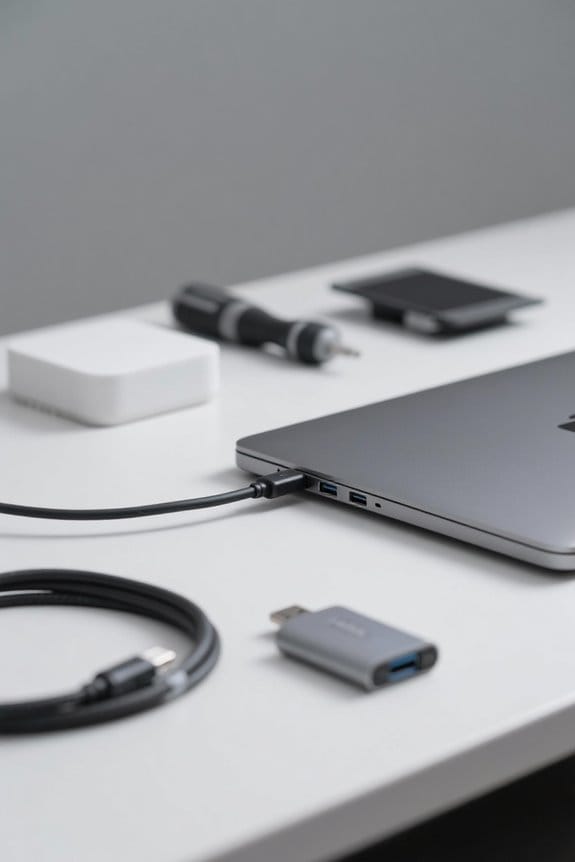

To troubleshoot USB-C display connection issues, first verify that the USB-C port supports video output, as not all models do. Check for secure connections using certified cables, ideally Thunderbolt 4 or USB4, which maximize performance and resolution. Guarantee graphics drivers and the operating system are current; uninstall and reinstall USB drivers if needed. Performing a hard reset on the monitor may resolve recognition problems. For further insights on driver updates and compatibility testing, additional information awaits.
Key Takeaways
- Check if the USB-C port supports video output by consulting the device specifications or manufacturer guidelines.
- Ensure all cable connections are secure and use certified USB-C to DisplayPort cables for optimal performance.
- Verify that your graphics drivers and operating system are up-to-date to ensure compatibility with external displays.
- Perform a hard reset on your external monitor by unplugging it and holding the power button for 10-15 seconds.
- Inspect cables for damage and confirm that any multiport hubs support the required resolution and refresh rates for connected devices.
Understanding USB-C Display Functionality
Understanding USB-C display functionality begins with recognizing that USB-C connectors can support various modes, including DisplayPort alternate mode, which enables video output to external monitors. Laptops, like the HP Pavilion series, may feature USB-C ports marked with a display icon, indicating their capability for video transmission. However, it is critical to note that not all USB-C ports offer this functionality; some are limited to data transfer and power delivery. Users must check manufacturer specifications to determine exact capabilities. Additionally, using certified USB-C to DisplayPort cables is essential, as non-compliant options may fail to support high-resolution output and create issues when trying to detect monitors. Finally, connecting multiple external monitors requires a compatible docking station that explicitly supports multiple display outputs. Modern USB-C PD 3.0 technology ensures efficient power delivery while maintaining optimal display performance across connected devices.
Initial Troubleshooting Steps
Effective troubleshooting of USB-C display connection issues involves a methodical approach that guarantees all components function correctly. First, verify that the USB-C port on the device supports video output, as this capability varies by model. Then, check that all cable connections are secure; utilize high-quality, certified cables that are compatible with both the laptop and the USB-C monitor or external monitors. Next, confirm that graphics drivers are up to date, along with the operating system, since outdated software can prevent proper recognition of external displays. Finally, perform systematic testing by connecting one external monitor at a time, isolating potential issues linked to specific monitors or cables during the troubleshooting process. Consider using a charger with GaN technology for optimal performance and reduced heat generation when powering multiple displays simultaneously.
Hard Resetting Your External Monitor
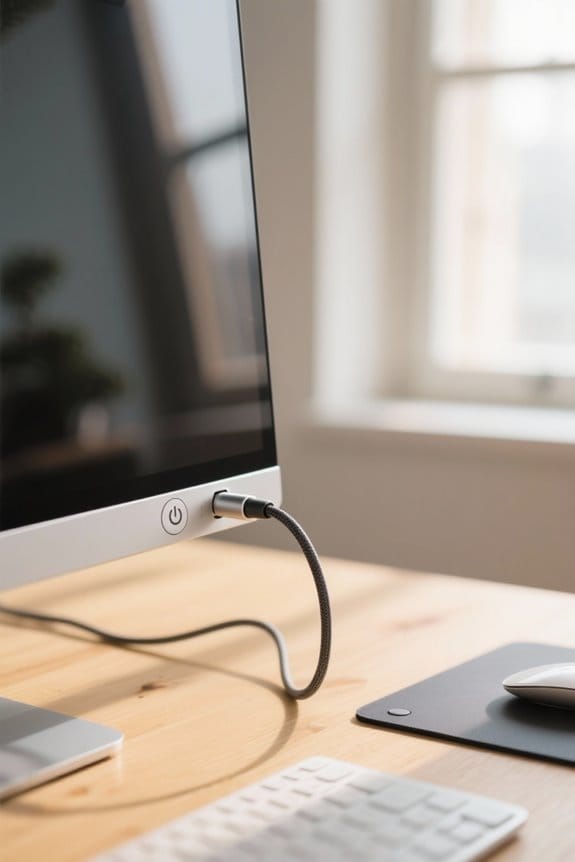
Resetting an external monitor can often resolve connectivity issues that arise in USB-C setups, particularly when the display becomes unresponsive or fails to be recognized. To perform a hard reset, the user must first unplug the monitor from the power source, ensuring complete disconnection. Next, it is vital to press and hold the power button for approximately 10-15 seconds, effectively clearing any residual charge from the internal components. After this brief pause, the monitor can be plugged back into the power source. Finally, turning the monitor on will restore its functionality and display settings. This hard reset method is particularly useful for troubleshooting issues related to system recognition or connection devices, providing a simple yet effective solution. Many modern USB-C hubs support 4K HDMI output for enhanced visual quality once the connection is restored.
Cable Quality and Compatibility Checks
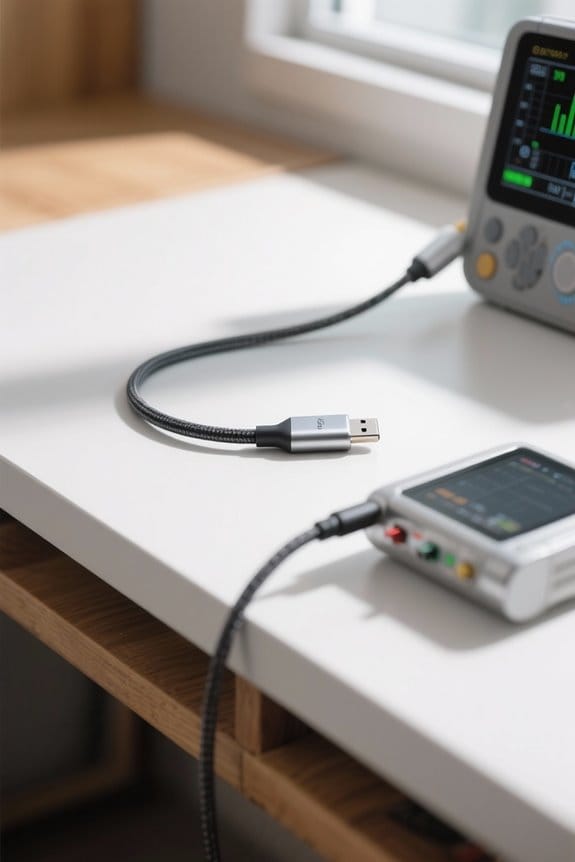
Quality of the USB-C cable plays a significant role in guaranteeing ideal display performance and connection reliability. Using certified Thunderbolt 4 or USB4 cables is essential, as substandard cable quality can severely affect data transmission and monitor connectivity. Inspecting cables for physical damage, such as fraying or bending, is critical for maintaining a reliable connection, as damaged cables often result in intermittent signal loss. Additionally, compatibility between the USB-C cable and the connected devices must be confirmed, as not all USB-C cables support video output, despite their similar appearance. When utilizing multiport hubs, it is important to verify they can handle the required resolution and refresh rate, as not all hubs adequately support video transmission. High-quality cables constructed with oxygen-free copper cores provide superior signal integrity and enhanced durability for reliable long-term use.
Software and Driver Updates
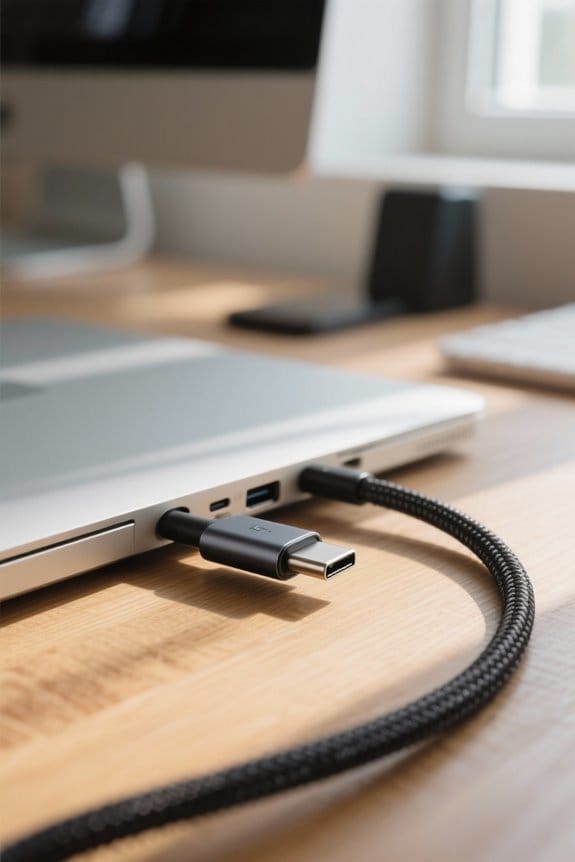
Ensuring that software and drivers are updated can greatly enhance the functionality of USB-C connections and prevent display issues that may arise from outdated or incompatible software. Regularly checking Windows Update, not just for system updates but also for specific driver updates related to USB and graphics devices, is essential in resolving display detection problems. In addition, utilizing software like the Thunderbolt Control Center can improve recognition and management of USB-C display outputs. Additionally, users may need to uninstall and reinstall drivers for USB Root Hubs and USB Host Controllers via Device Manager to refresh their connections. Finally, performing a firmware update or checking for BIOS updates can greatly enhance compatibility with external monitors and help users fix USB-C related issues efficiently. Modern GaN technology chargers provide improved efficiency and can help maintain stable power delivery during troubleshooting processes.
Safe Mode Diagnostics on Windows
Accessing Safe Mode in Windows offers a valuable diagnostic tool for users experiencing display issues with USB-C connections. To enable Safe Mode, users should hold the Shift key while clicking “Restart” from the Start menu, then navigate through “Troubleshoot,” “Advanced options,” and finally “Startup Settings.” This boot option loads only essential drivers, allowing for effective troubleshooting of potential third-party software conflicts affecting USB-C ports and external monitors. Users can test whether the monitor is recognized in Safe Mode, which may indicate if the display issues stem from software or driver problems. If the monitor functions correctly, it suggests updating or reinstalling USB-C and graphics drivers, consequently providing a clearer path to resolve the connection issues. For optimal display output through USB-C, ensure your hub supports 4K at 60Hz capabilities to maintain high-quality visuals during troubleshooting.
Seeking Community Support and Further Assistance
When troubleshooting USB-C display issues, users can greatly benefit from engaging with online communities and forums dedicated to these specific topics, as shared experiences often lead to effective solutions. Users who need help are encouraged to share specifics about their setups, including the make and model of their laptop, docking station, and monitors, to receive tailored advice. It is also beneficial to document previously attempted steps in troubleshooting to streamline assistance. If issues persist, users should report them through tools like the Windows Feedback Hub, notifying developers of bugs. Community forums may also guide users to manufacturer support pages, where unique drivers and firmware updates can be found. Finally, users should remember to press the power button to reset connections when necessary. For optimal performance, ensure your USB-C cables support PD 3.0 technology for faster and more reliable display connections.
Frequently Asked Questions
Why Is My USB-C Not Working as a Display?
The dance of technology can falter; USB-C may fail to display due to standards explained, device compatibility issues, or outdated drivers. Common troubleshooting steps, like cable checks and system updates, could restore the connection’s harmony.
How to Enable Display Through USB-C?
To enable display through USB-C, users should use compatible USB-C adapters, adjust display settings via the operating system, and guarantee devices are free from compatibility issues, such as incorrect cable specifications or outdated drivers.
Why Is My USB-C Monitor Not Detecting Signal?
The orchestra often goes silent when instruments fail to tune; similarly, a USB-C monitor may not detect a signal due to compatibility issues, improper cable types, or outdated driver updates disrupting harmonious connections.
Why Is My USB-C to HDMI Not Displaying?
The USB-C to HDMI may not display due to adapter compatibility issues, cable quality concerns with low-grade cables, or device settings misconfigurations. Each factor can hinder proper connection and signal transmission between the devices.


