
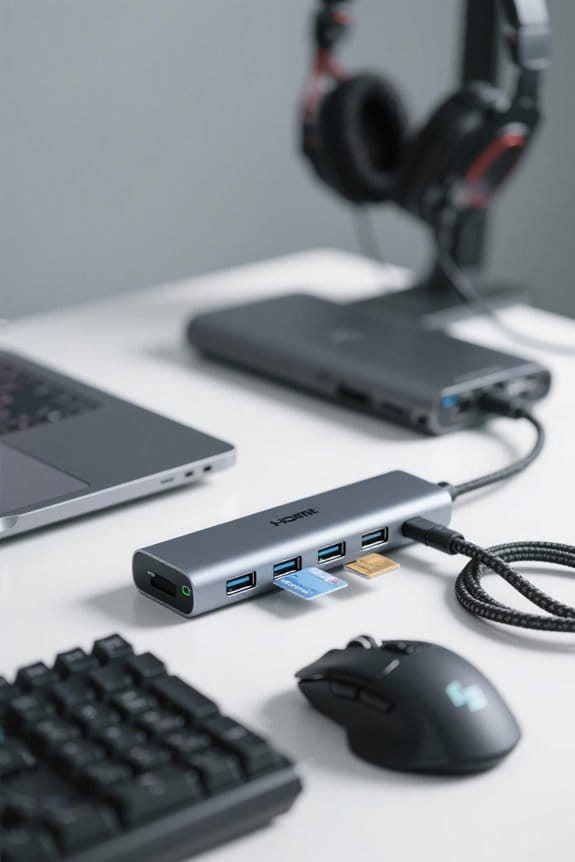

To use USB-C hubs for gaming laptop setups, connect the hub to the laptop’s USB-C port that supports Thunderbolt 3 or DisplayPort Alt Mode, ensuring it can handle high resolutions and refresh rates, ideally up to 4K at 120 Hz. Utilize multiple monitor outputs to achieve immersive gaming with resolutions matched to each display. Additionally, consider hubs with Power Delivery for charging capabilities, and high-speed ports for transferring large game files efficiently. There is much more to explore about optimizing gameplay.
Key Takeaways
- Ensure your USB-C hub supports multiple video outputs to connect up to three monitors for immersive gaming experiences.
- Check for Thunderbolt 3 compatibility for faster data transfers and lower latency during gameplay.
- Confirm the hub offers Power Delivery (PD) to charge your laptop while gaming without battery concerns.
- Select a hub that supports high resolutions, such as 4K at 120 Hz, to enhance visual quality during gaming sessions.
- Utilize high-speed USB ports for rapid file transfers, streamlining the installation and management of large game files.
Understanding USB-C Hubs for Gaming Laptops
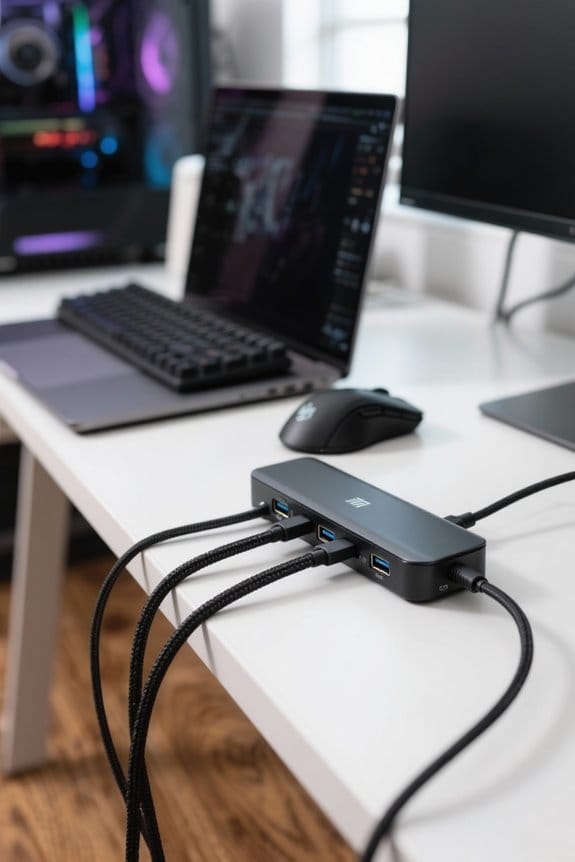
When considering the integration of USB-C hubs into gaming laptop setups, it is essential to understand the specific functionalities and benefits these devices offer. USB-C hubs can facilitate connections for multiple external displays, supporting up to three monitors via HDMI or DisplayPort connections, which is crucial for an immersive gaming experience. The performance of these hubs hinges on their ability to handle high refresh rates and resolutions, with some models capable of delivering 4K at 120 Hz or 8K at 60 Hz. Additionally, compatible USB-C hubs with Thunderbolt 3 can enhance data transfer speeds and reduce latency. Incorporating Power Delivery (PD) allows these hubs to charge laptops while gaming, often providing up to 100 watts of uninterrupted power. Ideally, the hub should support DisplayPort Alt Mode for video output. Modern USB-C docking stations feature 10Gbps data transfer capabilities, ensuring smooth gameplay and rapid file handling for demanding gaming scenarios.
Benefits of Using a USB-C Hub for Gaming
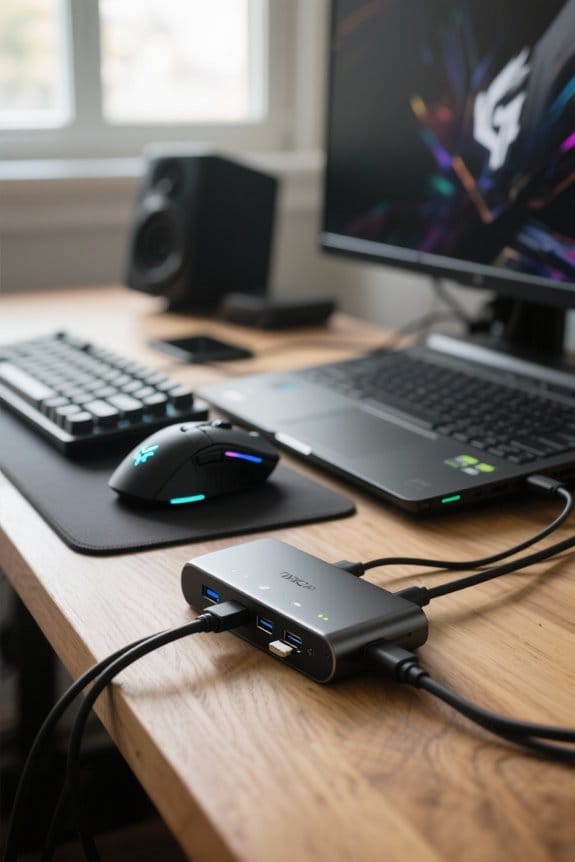
The integration of a USB-C hub into a gaming laptop setup presents numerous advantages that considerably enhance the gaming experience. This hub enables the connection of multiple monitors, promoting immersive gaming through multi-display configurations, while supporting resolutions up to 4K for vibrant visuals. Significantly, with USB-C Power Delivery (PD) capabilities, laptops can recharge seamlessly during gameplay, eliminating battery anxiety. Moreover, many USB-C hubs feature high refresh rates, which are essential for competitive gaming, ensuring fluid motion and responsiveness that can impact game outcomes. Additionally, the high-speed USB ports within the hub facilitate rapid data transfers, allowing gamers to quickly manage file updates and installations without experiencing lag, thereby optimizing overall performance. The LIONWEI docking station supports triple display functionality in Windows, enabling gamers to create an expansive battlefield view across multiple screens.
Identifying Essential Ports for Gaming Needs
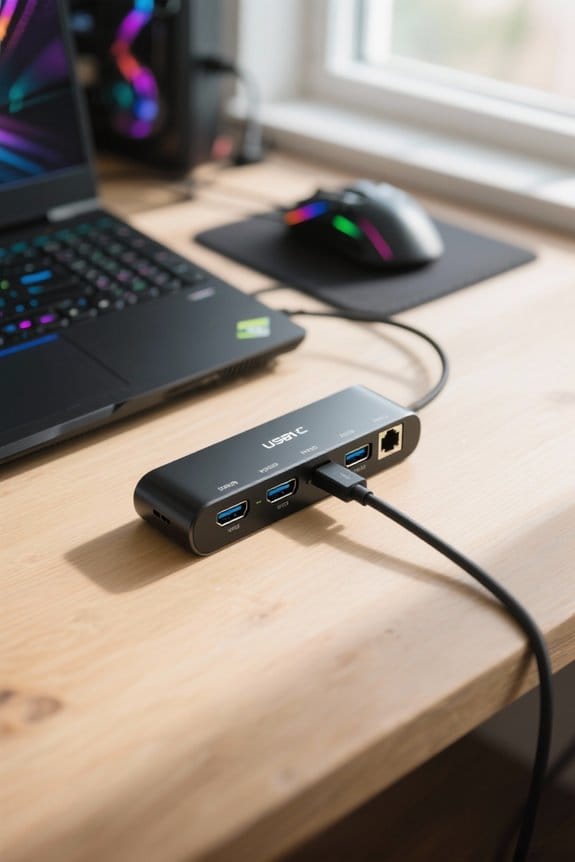
A well-rounded gaming setup requires careful consideration of essential ports to maximize functionality and performance. Selecting a USB-C hub equipped with at least one HDMI 2.1 or DisplayPort 1.4 port is vital, as this enables support for 4K gaming at high refresh rates, ensuring smooth gameplay. In addition, incorporating USB-A ports—ideally USB 3.2—facilitates fast data transfers for gaming peripherals like keyboards and mice. Important as well is the inclusion of USB-C Power Delivery, allowing simultaneous laptop charging while using peripherals, which helps prevent interruptions during lengthy sessions. Moreover, an Ethernet port, preferably with 1 Gigabit speeds, can greatly enhance online gaming experiences by providing stable and fast internet connectivity. Quality USB-C hubs like the UGREEN Revodok offer 10Gbps transfer speeds for seamless game installations and updates.
Setting Up a Multi-Monitor Gaming System
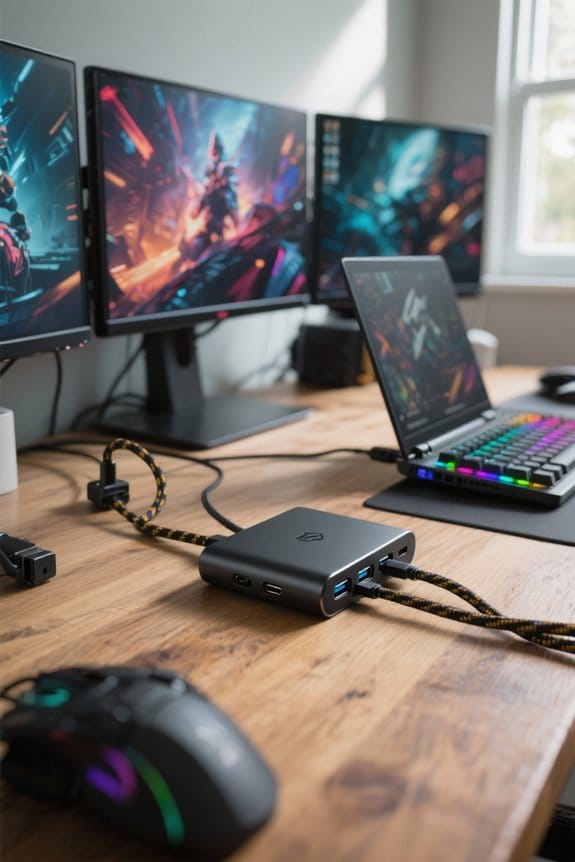
Setting up a multi-monitor gaming system can considerably enhance the gaming experience, as it allows for broader visual real estate and improved immersion. To begin, make sure the chosen USB-C hub supports multiple video outputs, facilitating the connection of two or more monitors via HDMI or DisplayPort connections. It is essential to select a high-quality hub featuring Power Delivery (PD) to simultaneously charge the gaming laptop while powering external displays, guaranteeing uninterrupted sessions. Additionally, one should confirm that each monitor operates at its native resolution and refresh rate to maximize visual quality. Furthermore, verify that the gaming laptop’s USB-C port is compatible with DisplayPort Alt Mode or Thunderbolt 3, enabling seamless video output to connected monitors, including high-resolution options. The latest dual 4K displays support up to 60Hz refresh rates through modern USB-C docking stations, providing smooth gameplay across multiple screens.
Connecting Peripherals With a USB-C Hub
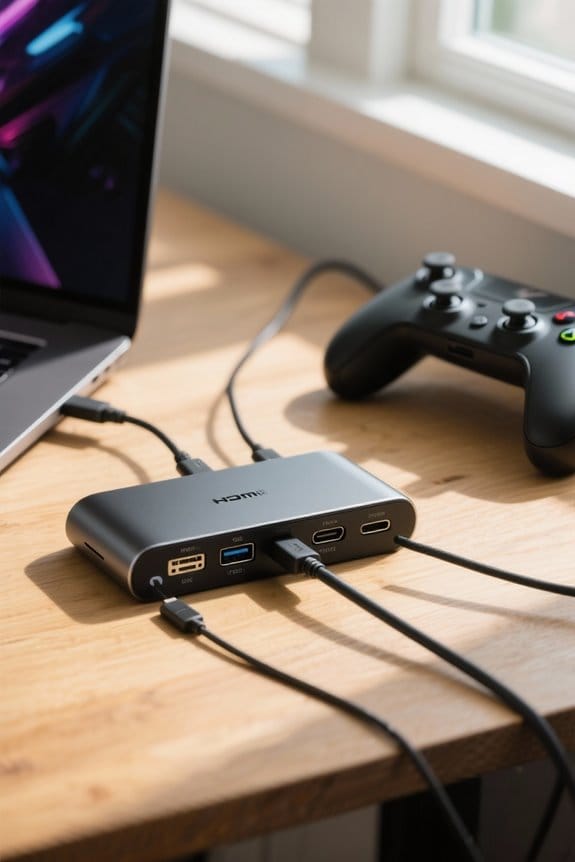
How can gamers fully leverage their USB-C hubs to enhance connectivity and overall performance? By utilizing a USB-C hub, players can effectively connect multiple devices, such as gaming mice, keyboards, and external drives, through various USB ports available. The inclusion of high-speed USB ports facilitates rapid data transfers, vital for handling large game files with minimal latency. In addition, many USB-C hubs feature HDMI or DisplayPort outputs, making it simple to connect a monitor, thereby expanding the gaming experience visually. To maintain uninterrupted gameplay, it is essential to select a hub that supports USB Power Delivery (PD), allowing for charging while gaming. Ensuring compatibility with devices USB-C and required data transfer speeds optimizes overall performance during intense gaming sessions. Modern USB-C hubs with 5 Gbps transfer speeds enable seamless gameplay while managing multiple peripherals simultaneously.
Ensuring High Video and Audio Quality
Achieving high video and audio quality during gaming sessions requires careful selection of USB-C hubs that offer advanced specifications and capabilities. Users should look for USB-C hubs that support HDMI 2.1 or DisplayPort 2.1, enabling video output with resolutions up to 8K at 120Hz. Additionally, choosing models with multiple outputs allows for the connection of three monitors simultaneously, maximizing screen real estate and enhancing gameplay immersion. It is also essential to opt for hubs that provide audio output via a 3.5mm jack or HDMI, ensuring crystal-clear sound quality. Finally, verifying compatibility with high refresh rates and low latency is vital; this combination promotes smooth gameplay during intense sessions, while Power Delivery (PD) capabilities maintain uninterrupted laptop charging. Premium hubs like the Satechi Thunderbolt 4 support single 8K or dual 4K display outputs with efficient heat management for extended gaming sessions.
Power Delivery: Charging While Playing
When utilizing a USB-C hub with Power Delivery (PD) for gaming laptops, it is essential to guarantee that the hub can deliver sufficient wattage, as many gaming laptops require between 96 to 240 watts for peak performance. Most USB-C hubs with PD can provide up to 100 watts of charging power, which may not fully meet the demands of high-performance devices. Therefore, ensuring compatibility with the gaming laptop’s specific requirements is vital. Utilizing a suitable USB-C hub allows users to charge your laptop while gaming, preventing battery drain during extended sessions. Additionally, these hubs can support various gaming peripherals without hindering performance. Always confirm that the selected USB-C hub is USB-IF certified to guarantee safety and reliability during simultaneous charging and gaming. Similar to top SD card readers, these hubs feature built-in protection against over-current and short circuits for enhanced safety during operation.
Optimizing Graphics Settings for Multiple Displays
Optimizing graphics settings for multiple displays requires careful consideration of both hardware specifications and software configurations to ascertain a seamless gaming experience. For peak performance, adjust graphics settings to match the primary monitor’s resolution and refresh rate, ensuring clarity and smooth frame rates. When using a USB-C hub, verify that it supports the required data bandwidth to maintain high resolutions, especially at refresh rates of 120Hz or 144Hz. Configure graphics card settings to extend the desktop across all connected monitors, maximizing the immersive experience, yet be mindful of potential performance dips under GPU load. Technologies like NVIDIA G-Sync or AMD FreeSync should be enabled to synchronize display refresh rates, complementing the graphics settings for enhanced responsiveness. Modern USB-C hubs supporting DisplayPort Alt Mode can deliver exceptional dual 4K@60Hz output for superior visual quality.
Enhancing Internet Connectivity for Online Gaming
To enhance internet connectivity for online gaming, the introduction of a USB-C hub equipped with an Ethernet port can greatly improve performance, enabling a stable and rapid connection with data transfer rates reaching up to 1 Gigabit per second (1000 Mbps). This wired connection considerably reduces latency and ping times, resulting in improved responsiveness and gameplay dynamics. Additionally, a USB-C hub allows users to connect multiple devices simultaneously, such as headsets, controllers, and storage units, without degrading network performance. Many hubs also support Power Delivery (PD), facilitating charging of the gaming laptop while ensuring uninterrupted online sessions. It is essential to select a USB-C hub compatible with the gaming laptop’s specifications to optimize overall performance during competitive gaming. High-speed data transfer capabilities of up to 5Gbps through USB ports ensure smooth gameplay while managing multiple connected peripherals.
Audio and Video Streaming Through USB-C Hubs
Incorporating a USB-C hub into a gaming laptop setup greatly enhances audio and video streaming capabilities, particularly as many modern hubs are equipped with advanced output options such as HDMI and DisplayPort. These hubs often support 4K video streaming at 60Hz, allowing vivid visuals and fluid performance during extended gaming sessions or media consumption. Additionally, the inclusion of a 3.5mm audio jack in USB-C hubs enables high-quality sound output, making it ideal for headphones and external speakers. Remarkably, USB-C hubs with Power Delivery (PD) allow users to simultaneously charge their gaming laptops while enjoying uninterrupted audio and video streaming, considerably improving the overall gaming experience. Utilizing these features can streamline connectivity and enhance performance for gamers. Popular models like the Anker 555 USB-C hub deliver impressive 10 Gbps data transfer speeds while maintaining stable audio and video output quality.
Transferring Game Files via USB-C Hub
Efficient file transfers are essential for gamers who frequently install or update large game files, and a USB-C hub greatly enhances this process. USB-C hubs equipped with high-speed USB ports enable rapid data transfer rates of 10 Gbps or higher. This considerably shortens the time required to copy or move large game installations. By utilizing the multiple USB-A and USB-C ports on a hub, users can easily connect external drives or flash drives directly for seamless file transfers. Additionally, the convenience of managing multiple peripherals simultaneously, such as keyboards and controllers, allows gamers to streamline their setups effectively. For peak performance, verify that all connected devices, including storage drives, support USB 3.1 or later standards.
Avoiding Common Connectivity Issues
Connectivity issues can greatly disrupt a gaming experience, making it crucial to understand how to avoid them when using a USB-C hub. First, verify the USB-C hub supports DisplayPort Alt Mode or Thunderbolt 3, as these features are fundamental for transmitting video signals efficiently. Additionally, it is important to confirm that the hub can handle specified resolutions and refresh rates, such as 4K at 60Hz or higher, to maintain high-quality visuals on external monitors. Employ high-quality HDMI or DisplayPort cables to minimize signal degradation, which is often a source of connectivity problems. Regularly check for firmware updates for your USB-C hub, as these can resolve compatibility issues and enhance performance with newer gaming devices.
Future-Proofing Your Gaming Setup
A forward-thinking gaming setup requires a USB-C hub that not only meets current needs but also anticipates future advancements in technology. Selecting a USB-C hub supporting USB 4.0 or Thunderbolt 4 facilitates compatibility with upcoming gaming peripherals, providing high-speed data transfer rates of up to 40 Gbps. Additionally, opting for a hub with Power Delivery capabilities allows for efficient charging of the gaming laptop while operating multiple devices such as keyboards and mice. Hubs featuring HDMI 2.1 guarantee readiness for high-definition gaming monitors, accommodating 4K resolution at 120Hz and even 8K at 60Hz. Including various connectivity options, like DisplayPort and multiple USB-A ports, will enhance versatility, maintaining a reliable and future-proof gaming experience.
Tips for Portability and Travel With a USB-C Hub
Traveling with a USB-C hub can greatly enhance a gaming laptop’s functionality on the go, guaranteeing that users maintain seamless access to all essential peripherals and external displays. For最高の portability, selecting a lightweight and compact USB-C hub is critical, as it fits easily into a laptop bag without adding bulk. A robust build, preferably metallic, enhances durability amid travel wear and tear. Users should carry a high-quality, short USB-C cable to simplify connections while minimizing cable clutter. Favor hubs featuring Power Delivery capabilities, as this allows simultaneous charging of the laptop while connecting multiple ports for various peripherals. This versatility guarantees users can seamlessly utilize gaming accessories, external displays, and data storage during their journeys.
Frequently Asked Questions
How to Use USB-C Hub With Laptop?
To use a USB-C hub with a laptop, one should evaluate USB C compatibility features, embrace hub connection advantages, integrate gaming peripherals, and guarantee effective laptop power delivery for uninterrupted performance during use.
Are USB Hubs Ok for Gaming?
USB hubs are generally acceptable for gaming, provided they offer high reliability and performance. Ensuring compatibility with necessary specifications like fast data transfer and video output support is essential to prevent any gaming disruptions or performance issues.
Do USB-C Hubs Add Latency?
USB-C hubs generally do not add latency, provided they are of high quality. However, latency considerations arise with substandard hubs, which may impact performance and connection stability, especially when managing multiple high-bandwidth devices.
Is It Okay to Use a USB Hub on a Laptop?
Using a USB hub on a laptop is generally acceptable, providing expandability and USB hub benefits. Confirming USB hub compatibility and performance is essential for peak device functionality, while selecting high-quality options guarantees USB hub safety during use.


