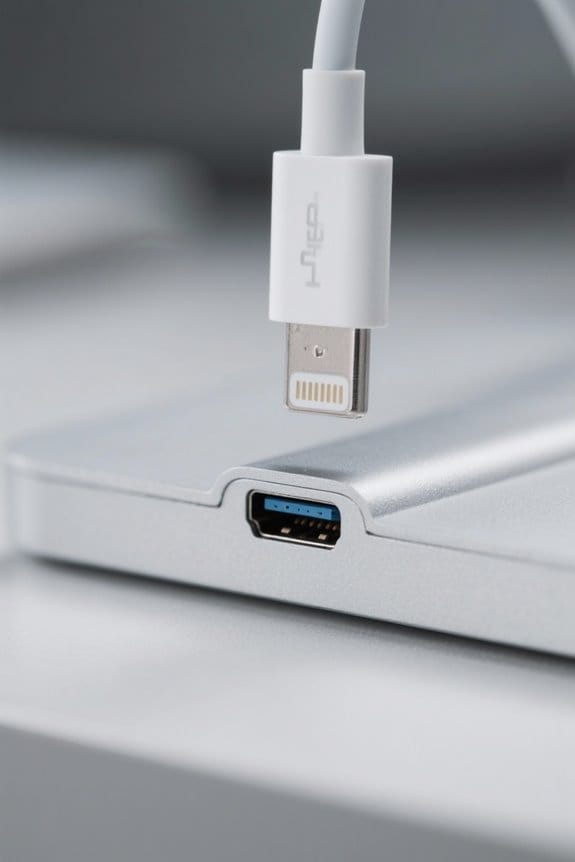
Best practices for using USB-C hubs with MacBooks include directly connecting high-speed devices, such as external SSDs, to the MacBook for ideal transfer rates. It is crucial to verify that the hub supports USB Power Delivery (PD) to avoid disconnections during charging. Choosing powered USB hubs is recommended for high-draw devices, while checking specifications for USB 3.2 or Thunderbolt 3 compatibility will enhance performance. Users should also monitor hub power levels and manage device connections efficiently; further insights await exploration.
Key Takeaways
- Connect high-speed devices like external SSDs directly to the MacBook for optimal performance instead of through a hub.
- Ensure the USB-C hub supports USB Power Delivery (PD) to keep your MacBook charged during use.
- Use powered USB-C hubs for high-draw devices to prevent power overload and performance issues.
- Limit multitasking during large file transfers to maintain stable connectivity and avoid unexpected disconnections.
- Check hub specifications for 4K at 60Hz support to enhance video output quality when using external displays.
Understanding USB-C Technology and Its Benefits
Understanding USB-C technology is essential for users looking to maximize the potential of their MacBooks, as this versatile connection standard not only simplifies connectivity but also enhances performance. USB-C supports high-speed data transfer rates of up to 40 Gbps, particularly when leveraging Thunderbolt 3 or 4 protocols, making it ideal for demanding tasks like video editing. The reversible connector design increases user convenience while reducing wear on ports. Additionally, USB-C hubs facilitate the connection of multiple peripherals, enabling users to expand functionality with devices such as external storage and displays. Many hubs also offer Power Delivery (PD), allowing simultaneous charging and device operation, thereby streamlining workflows by eliminating the need for extra power sources in modern tech environments. When selecting a USB-C hub, users should note that dual 4K outputs are available in premium models like the Selore and Anker docking stations.
Identifying Your Device Connectivity Needs

Determining the specific connectivity requirements for a MacBook begins with evaluating the number of USB-C ports available, which varies between models such as the MacBook Air and MacBook Pro. Users should assess the type and number of peripherals they intend to connect, ensuring that the chosen USB-C Hub can accommodate and connect multiple devices effectively. It is essential that the hub supports power delivery and high-speed data transfers, particularly for external SSDs. For peak performance, connect high-demand devices directly to the MacBook’s USB-C ports, while utilizing hubs for lower-demand peripherals like keyboards and mice. Reviewing hub specifications for compatibility and performance, alongside user ratings, will provide valuable insights prior to making a purchase decision. Modern USB-C adapters featuring oxygen-free copper cores offer enhanced durability and optimal signal transmission for reliable daily use.
Exploring Different Types of USB-C Hubs

Various types of USB-C hubs are available on the market, each designed to cater to different connectivity needs and usage scenarios. Powered USB hubs are capable of supplying additional power for multiple high-draw devices, making certain efficient performance during demanding tasks. In contrast, passive hubs rely on the host device for power supply. High-quality USB-C hubs often feature multiple ports for port expansion, supporting data transfer speeds up to 40 Gbps, particularly those compatible with Thunderbolt 3. Many hubs include a mix of USB-C, USB-A, HDMI, and Ethernet ports, while specialized options focus solely on USB-C. It’s vital to confirm that any selected hub supports USB Power Delivery (PD) to adequately charge devices and maintain performance. Premium hubs with fast data transfer capabilities can move a 1GB file in approximately 1 second, making them essential for media professionals.
Key Features to Look for in a USB-C Hub

Selecting the right USB-C hub requires attention to specific features that guarantee compatibility and ideal functionality with MacBooks. First, look for USB-C hubs with multiple ports, preferably 3 to 4, to effectively connect various devices, including external SSDs and flash drives. Additionally, verify the hub supports the latest USB standards, such as USB 3.2 or Thunderbolt 3, which enables data transfer rates up to 40 Gbps for peak performance. Power Delivery capabilities are also essential, allowing the MacBook to charge while powering connected peripherals. Moreover, opting for powered USB-C hubs will enhance stability when connecting multiple high-draw devices. Finally, evaluating user reviews and brand reputability can provide insights into the reliability and performance of potential hubs. When considering display capabilities, look for hubs that support dual 4K@60Hz output to ensure the highest quality visual experience across multiple monitors.
Evaluating Power Delivery Capabilities

Evaluating the power delivery capabilities of USB-C hubs is vital, as these specifications directly impact device usability and performance. The USB-C Power Delivery (PD) standard typically allows for up to 100W of power, enabling efficient charging of laptops while simultaneously powering other peripherals. However, not all USB-C hubs support PD; as a result, reviewing product specifications is essential to guarantee compatibility with devices like the MacBook Air. Hubs offering lower wattage outputs, such as 30W or 60W, may struggle to provide adequate charging for high-power devices, necessitating careful management of connected peripherals. Opting for a powered hub can enhance stability in power delivery, particularly when multiple high-draw devices are in use, guaranteeing consistent performance and charging efficiency. Premium hubs like the UGREEN Revodok 105 deliver up to 100W of power while maintaining data transfer speeds of up to 10 Gbps.
Performance Considerations When Using Hubs
When choosing USB-C hubs for MacBooks, performance considerations are critical, as even minor discrepancies in specifications can greatly impact the user experience. Connecting high-speed devices like external SSDs directly to the MacBook’s native USB-C ports is preferred because USB-C hubs may introduce overhead, subsequently lowering transfer speeds. Additionally, as multiple devices share a single connection through a hub, data transfer rates can diminish, especially for speed-sensitive peripherals. Utilizing powered USB-C hubs can help meet the power requirements of multiple high-draw devices, ensuring stable performance. It’s advisable to select hubs that support USB 3.2 or Thunderbolt 3, as these allow for impressive data transfer rates up to 40 Gbps, well above older USB standards. The Anker 7-in-2 hub exemplifies optimal performance with its 40Gbps data transfer capability while maintaining charging functionality up to 100W.
Prioritizing Direct Connections for Critical Devices
Prioritizing direct connections for critical devices can greatly enhance the overall functionality and efficiency of MacBooks. Directly connecting high-end SSDs, audio production gear, or external displays to the MacBook’s native ports maximizes performance and minimizes latency issues, which frequently occur with USB hubs. When multiple devices share bandwidth through a hub, data transfer speeds can drop markedly, undermining the capabilities of speed-sensitive peripherals. Utilizing the full Thunderbolt capability enables faster data transfer rates up to 40 Gbps, particularly beneficial for high-capacity drives. Additionally, directly connecting power-demanding devices like scanners can prevent power-related disruptions, ensuring stable operation. Consequently, USB hubs should primarily be reserved for less critical accessories, such as keyboards and mice, to optimize MacBook port usage effectively. Modern USB-C hubs with 10Gbps transfer speeds offer improved performance for secondary devices while preserving direct connections for mission-critical equipment.
Recommendations for Reliable USB-C Hubs
Selecting a reliable USB-C hub is essential for maximizing the functionality of a MacBook, especially when connecting multiple peripherals. Users should look for USB-C hubs that expressly indicate compatibility with MacBook devices, prioritizing those equipped with USB Power Delivery (PD) to charge the MacBook while also supporting peripherals. For multiple high-draw devices, powered USB-C hubs are advisable to prevent performance issues caused by insufficient power. Notable examples include the Plugable 5-in-1 hub, priced around $129, which features multiple USB-C ports for high-speed data transfers. Alternatively, the Anker USB-C hub and the PULWTOP Multiport Hub are popular choices, known for their reliability and balanced connectivity. Always consult user reviews to verify real-world performance and compatibility with similar devices. The most advanced hubs now support dual 4K HDMI outputs with up to 85W Power Delivery for optimal multi-display workstation setups.
Best Practices for Connecting Multiple Devices
Although connecting multiple devices to a USB-C hub can enhance functionality, it requires careful consideration of device types and power needs to ascertain ideal operation. For best performance, prioritize attaching speed-critical devices, such as external SSDs, directly to the MacBook’s USB ports, avoiding potential bottlenecks. Powered USB-C hubs are advisable for high-draw devices to mitigate power overloads, especially with multiple USB connections. When connecting peripherals, check the specifications for power delivery capabilities, ensuring the hub can charge a MacBook Air while supporting additional devices. Furthermore, categorize devices by their power requirements; connect low-power peripherals like keyboards and mice to the hub, while reserving USB ports for high-speed data transfer to maintain stable performance across all connected devices. Modern Anker USB-C hubs support 10 Gbps transfer speeds for efficient data management across multiple connected peripherals.
Avoiding Common Mistakes With USB-C Hubs
Steering through the domain of USB-C hubs requires a keen understanding to avoid common pitfalls that could undermine device performance. Users should prioritize directly connecting high-speed devices, such as external SSDs and displays, to the MacBook’s USB-C ports, as this maximizes performance and minimizes latency. It’s imperative to ascertain the USB-C hub supports USB Power Delivery (PD), which allows adequate charging and power from the Mac, preventing disconnections during usage. Additionally, overloading a bus-powered hub with multiple high-draw USB devices can lead to insufficient power and erratic performance. Finally, multitasking during large file transfers might also disrupt connectivity, emphasizing the importance of focused usage when utilizing hubs for data-intensive tasks. For optimal video output performance, ensure your USB-C hub supports 4K at 60Hz capabilities when connecting to external displays for presentations or content creation.
Assessing the Quality and Brand Reputation
Evaluating the quality and brand reputation of USB-C hubs is vital for guaranteeing ideal performance and reliability, as users often encounter a wide range of options on the market. Reputable brands like Plugable and Anker are often preferred due to their consistent positive reviews for reliability and performance, especially among MacBook owners. When selecting a hub, it is important to examine product specifications for power delivery (PD) capabilities, which confirm efficient charging while supporting other connected peripherals. Additionally, reviewing user feedback on platforms such as Amazon can provide insight into data transfer speeds and connectivity stability, key factors that mitigate issues like latency. Finally, reputable brands frequently offer better warranty and customer support options, safeguarding users’ investments.
Monitoring and Troubleshooting Connection Issues
Monitoring connection issues with USB-C hubs is essential for maintaining an ideal workflow, especially for users reliant on MacBooks to handle various tasks simultaneously. Users should regularly verify that their USB-C hubs are adequately powered since insufficient power may cause unexpected drops or device disconnections. In instances of unexpected eject messages during large file transfers, it is advisable to connect devices directly to the MacBook for improved performance. Troubleshooting involves identifying whether the hub is bus-powered or self-powered, as self-powered hubs manage multiple high-draw devices more effectively. Moreover, configuring Mac settings to prevent sleep mode during transfers can mitigate drive disconnections, while monitoring hub performance and redistributing devices among ports optimizes stability and connectivity.
User Experiences and Community Insights
What influences user experiences with USB-C hubs connected to MacBooks? Users consistently report that devices linked directly to a MacBook outperform those attached through USB-C hubs, largely due to the latency introduced by multiple connections. Reliability remains a notable concern, with feedback indicating connection failures, especially during high-speed data transfers necessary for essential tasks. Community insights highlight the significance of selecting powered USB-C hubs, as bus-powered models often struggle with high-draw peripherals. Brands such as Anker and Plugable receive positive user feedback for their performance and durability, further aiding informed decisions. Engaging in online forums like MacRumors allows users to exchange troubleshooting tips, enhancing knowledge about ideal hub configurations and ensuring device compatibility.
Frequently Asked Questions
Do USB-C Hubs Work With Mac?
Like a bridge connecting two shores, USB-C hubs provide seamless compatibility with MacBooks, expanding port options for peripherals. These hubs facilitate efficient connections, enhancing productivity through a streamlined experience for users needing additional functionality.
Is There a Downside to USB Hubs?
There are downsides to USB hubs, including compatibility issues with various devices, potential power delivery limitations for high-consumption peripherals, and reduced data transfer rates due to bandwidth sharing, which can impact overall performance greatly.
Can You Use a USB Hub With a Macbook Air?
Using a USB hub with a MacBook Air is possible, alleviating port limitations. However, users discovered that hub performance often falters under Air model limitations, highlighting the importance of USB-C compatibility in their peripheral choices for ideal efficiency.
Do USB-C Hubs Add Latency?
USB-C hubs generally do not add significant latency, but USB-C speed can be affected by hub compatibility. Charging efficiency may also decline if lower-quality hubs struggle with multiple high-power connections, impacting overall performance.