
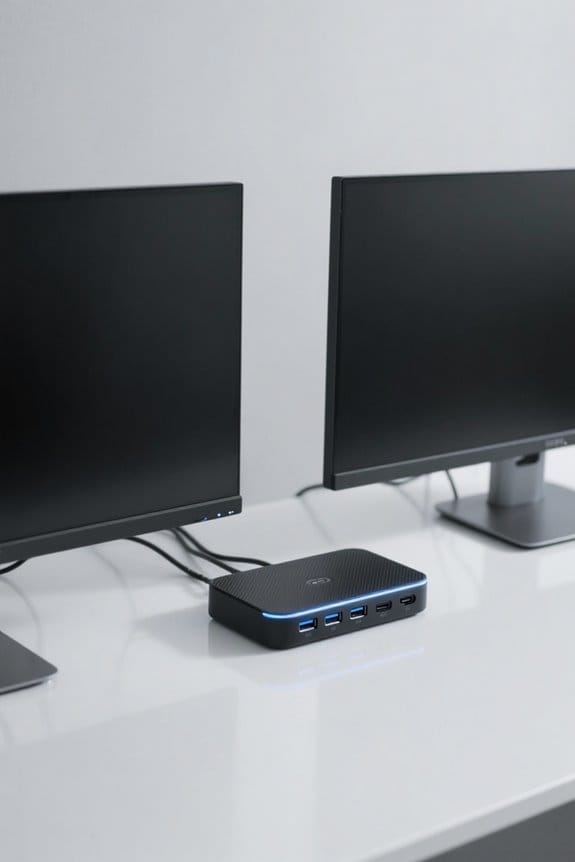

To select a docking station for a dual monitor setup, first assess display requirements, including resolution, refresh rate, and compatibility. Look for docks that support HDMI or DisplayPort connections and verify they can deliver at least 4K resolution at 120Hz for gaming. Check for USB-C or Thunderbolt 4 support for high-speed data transfer, ensuring your laptop’s ports are compatible for video output. Power delivery capabilities should ideally exceed 60W to charge your laptop effectively. Continue to explore detailed features available.
Key Takeaways
- Verify that the docking station supports dual monitor setups with multiple video output ports like HDMI or DisplayPort.
- Ensure compatibility with your laptop’s USB-C or Thunderbolt port for seamless video output features.
- Check that the dock can handle your desired resolutions, preferably dual 4K displays with at least 60Hz refresh rates.
- Look for power delivery capabilities to charge your laptop while using the dock, ideally between 60W and 100W.
- Research brand reputation and read user reviews to confirm the docking station’s reliability and performance for dual monitors.
Understanding Your Display Requirements
When commencing on the journey to select a docking station for dual monitors, one must first consider the specific display requirements that cater to their professional or personal needs. Evaluating display support is critical, as different docking stations accommodate dual, triple, or even quadruple monitor setups based on their port availability and power delivery capabilities. It is important to check compatibility with your monitors, including the types of display outputs available, such as HDMI, DisplayPort, or VGA. Additionally, users should verify that their chosen docking station supports desired resolutions, such as 4K or higher, and refresh rates of at least 120Hz, especially for gaming. Ultimately, confirming that the laptop has the necessary ports for multiple displays is also essential for seamless connectivity. Modern docking stations with 10Gbps data transfer capabilities ensure efficient handling of high-resolution display outputs across multiple screens.
Assessing Operating System Compatibility
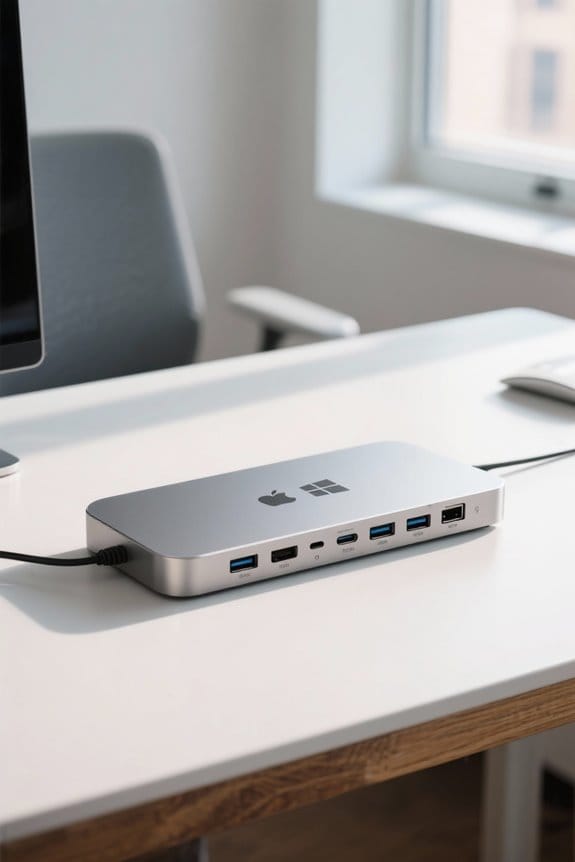
Selecting the appropriate docking station must also involve a careful assessment of operating system compatibility, as this factor greatly influences the user experience. macOS typically imposes limitations on the number of external displays that can be connected, often allowing for fewer monitors than its Windows counterpart. While Windows laptops generally support multiple monitors through straightforward connections such as HDMI, DisplayPort™, or USB-C, macOS users may need to utilize docks with DisplayLink® technology, which necessitates driver installation for enhanced functionality. For macOS, a dock combining Thunderbolt™ and DisplayLink®, like the Kensington SD5900T, can support up to four displays. Ultimately, verifying model specifications guarantees that the chosen docking station meets any unique requirements relevant to the operating systems in use. Modern Thunderbolt 4 docks like the CalDigit TS4 offer dual 4K display support with extensive connectivity options through 18 ports.
Evaluating Available Ports and Connectors
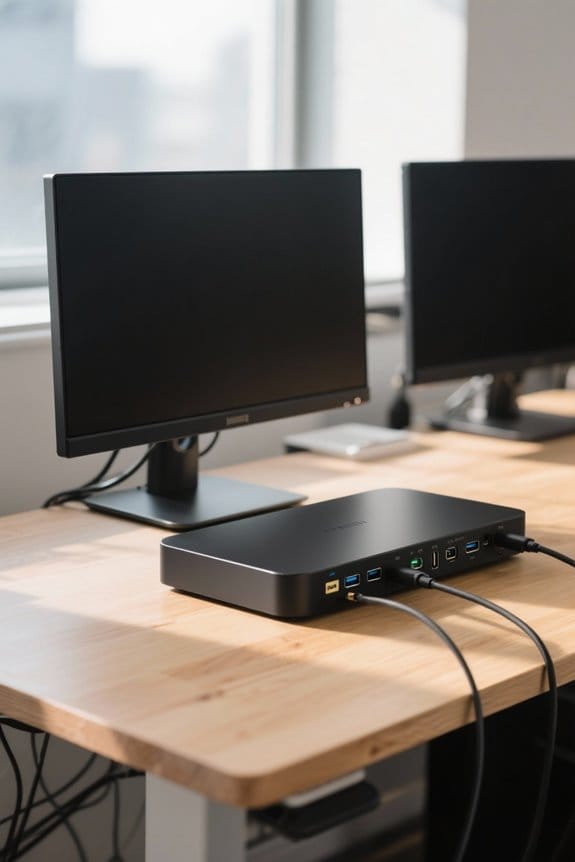
Evaluating the available ports and connectors of a docking station is essential, as this determines its overall functionality and compatibility with dual monitor setups. It is vital to confirm that the docking station includes multiple video output ports, such as HDMI or DisplayPort, facilitating the connection of both monitors. In addition, the laptop’s USB-C or Thunderbolt port must support video output; many are designed solely for data transfer. The docking station should also feature USB 3.0 or higher ports, ensuring fast data transfer rates for peripherals. Moreover, adequate power delivery, ideally 60W or more via USB-C, is necessary to charge the laptop while utilizing dual monitors, effectively reducing cable clutter and enhancing workspace efficiency. Leading docking stations like the Anker Prime offer 160W power output capabilities, supporting simultaneous charging of up to four devices while maintaining optimal performance for dual displays.
Importance of Resolution and Refresh Rate
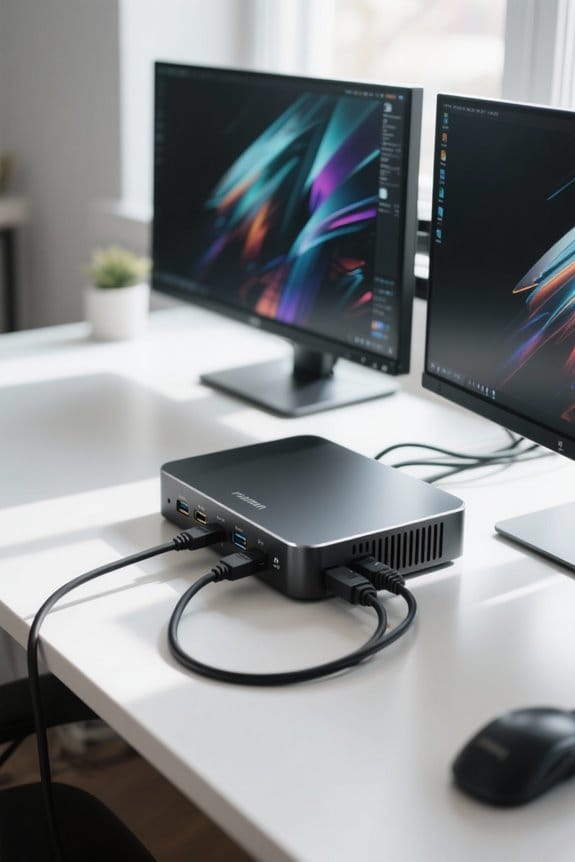
Achieving ideal performance in a dual monitor setup hinges greatly on the resolution and refresh rate specifications of the docking station. High resolution, such as 4K (3840 x 2160), is imperative for clear image quality, enhancing productivity in tasks demanding visual precision. In addition, selecting a docking station that supports elevated refresh rates, like 120Hz or 144Hz, markedly improves smoother visuals, particularly essential in gaming or video editing, effectively reducing motion blur. Interfaces like DisplayPort and HDMI are preferred for their capability to uphold these higher resolutions and refresh rates, while older standards like VGA fall short. For optimal functionality, the docking station should feature USB-C or Thunderbolt 4 support, ensuring sufficient bandwidth to maintain peak performance across dual monitors. Modern docking stations like the WAVLINK 6-in-1 offer 4K@144Hz HDMI 2.1 output capabilities while maintaining a compact form factor for versatile desk setups.
Power Delivery Considerations
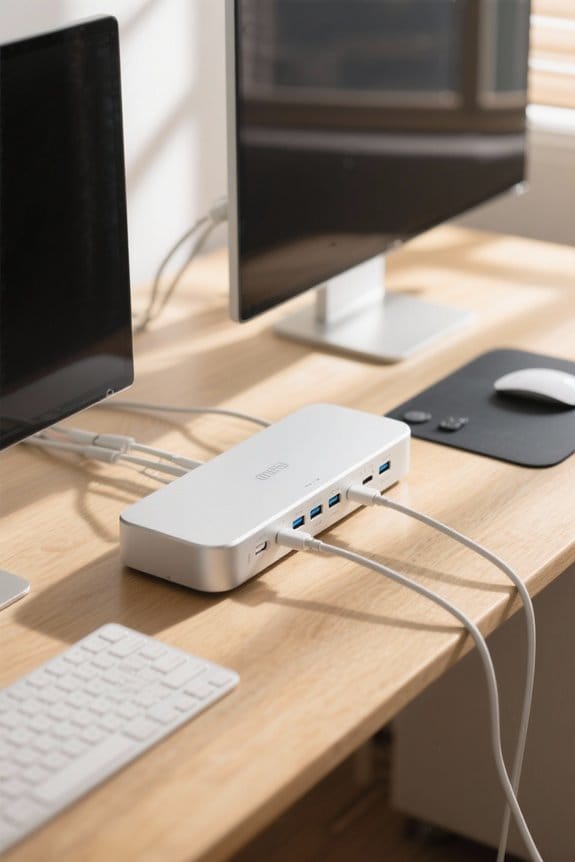
When determining the appropriate docking station for a dual monitor configuration, it is vital to prioritize power delivery capabilities to guarantee peak performance. A suitable docking station should offer power delivery ranging from 60W to 100W for standard setups, adequately charging laptops while allowing for external displays. Importantly, high-performance laptops like the MacBook Pro may demand docking solutions that provide 100W or more, especially during intensive tasks. It is essential to check the total power output, ensuring it can accommodate the combined needs of the laptop and connected peripherals without hindering performance. By choosing a dock with effective power delivery, users can markedly reduce cable clutter, connecting and charging multiple devices using a single cable for enhanced convenience. The Plugable UD-ULTCDL dock demonstrates optimal power delivery with its 100W charging capability, making it ideal for demanding dual monitor setups.
Choosing Between DisplayLink® and Native GPU
Selecting the ideal connection method for dual monitors is crucial, especially when weighing the benefits of DisplayLink® technology against native GPU capabilities. DisplayLink enables connections for multiple high-resolution displays via a single USB port, but requires driver installation. Conversely, native GPU connections utilize the laptop’s integrated graphics, delivering lower latency without additional driver requirements. While DisplayLink can support more than two monitors on macOS systems, native GPU setups generally exhibit superior performance, particularly in demanding applications. However, DisplayLink’s versatility allows for higher-resolution outputs, albeit with some latency. Ultimately, the choice between DisplayLink and native GPU depends on an individual’s workflow priorities—whether to focus on consistent performance or versatility in supporting multiple high-resolution displays. Modern docking stations equipped with GaN technology offer enhanced power efficiency while maintaining a compact form factor for versatile monitor connectivity.
Recommended Features for Dual Monitor Docking Stations
A dependable dual monitor docking station should encompass several key features to guarantee peak performance and flexibility for users. It is essential to select a model that includes at least two HDMI outputs or DisplayPort connections, enabling seamless integration of dual monitors. Users should prioritize docking stations that support resolutions of at least 1080p, though options with 4K compatibility enhance visual clarity. Additionally, verifying compatibility with the operating system, whether Windows or macOS, is vital for ensuring proper functionality. A minimum power delivery rating of 60W is recommended to effectively charge laptops and power connected monitors and peripherals. Finally, look for docking stations equipped with multiple USB ports, ideally USB 3.0, to accommodate essential accessories without compromising performance. For optimal data transfer speeds between devices, choose docking stations that offer 10Gbps transfer rates to ensure efficient file sharing and seamless connectivity with external storage devices.
Key Brands and Models to Consider
Several reputable brands offer high-quality docking stations designed for dual monitor setups, each with unique features and specifications tailored to meet diverse user needs. The Kensington SD5900T is ideal for Mac users, supporting up to four displays via Thunderbolt™ and DisplayLink® technologies. For versatility, the Dell D6000 is compatible with both Windows and Mac, enabling dual 4K monitors through DisplayLink. Anker’s PowerExpand Elite 13-in-1 delivers 85W of power while supporting dual monitors, which is beneficial for powerful laptops. For Windows users, the Plugable USB-C Triple Display Docking Station allows the use of three 1080p external monitors simultaneously. Finally, the Targus DOCK180USZ offers dual HDMI outputs and 60W power delivery, fostering a reliable setup for various laptops. Modern docking stations feature aluminum construction for superior heat dissipation and durability during extended use.
Step-by-Step Setup Guide for Dual Monitors
Setting up dual monitors requires careful attention to detail and a methodical approach to guarantee peak performance and compatibility. First, verify the laptop possesses necessary video output capabilities, such as USB-C or Thunderbolt. Confirm that the docking station is suitable for dual monitor setups. Connect the docking station to the laptop with a high-quality USB-C or Thunderbolt cable, followed by connecting the monitors via appropriate HDMI, DisplayPort, or USB-C ports. Next, access display settings: for Windows, select “Extend these displays,” while macOS users should navigate to System Preferences > Displays to arrange monitors. Finally, adjust the resolution and refresh rates in settings to achieve the best clarity, verifying each monitor is compatible with higher resolutions for enhanced visual output. For optimal performance, consider an Anker docking station with 10 Gbps transfer speeds to ensure smooth operation when managing extensive file transfers between devices.
Common Issues and Troubleshooting Tips
When engaging with dual monitor setups, various issues can arise unexpectedly, creating frustration for users. To troubleshoot monitor detection problems, first verify that both displays are powered on and securely connected to the docking station, confirming that cables such as HDMI or DisplayPort are inserted correctly. If two monitors are not recognized, restart the laptop and check that the correct USB-C or Thunderbolt cable is in use. For Mac users, enabling screen recording permissions in privacy settings is vital for DisplayLink functionality. Additionally, regularly updating graphics drivers can resolve display recognition issues. If a monitor displays a black screen, confirm the input source is correct and test with alternative cables to rule out faulty connections. Modern USB-C power delivery technology supports up to 165W output, ensuring sufficient power for dual monitor configurations through compatible docking stations.
Enhancing Ergonomics in Your Workspace
To enhance ergonomics in a workspace featuring dual monitors, critically examining monitor placement and accessory use can yield significant benefits for user comfort and productivity. Positioning the top third of the primary monitor at eye level can reduce neck strain and promote a comfortable viewing angle. Monitor arms or adjustable stands are recommended to customize the height and tilt of each monitor, which facilitates better ergonomics and reduces eye fatigue. It is essential for the keyboard and mouse to be centered in front of the main screen, preventing shoulder and wrist discomfort. Maintaining an arm’s length distance from the screen minimizes eye strain, while a tidy workspace with effective cable management enhances overall focus and movement.
Cable Management Solutions
Effective cable management solutions are crucial for creating an organized and efficient workspace, especially in environments that utilize dual monitors. Implementing desk-mounted trays or under-desk organizers can effectively manage excess cable slack, maintaining a cleaner workspace. Moreover, using adhesive clips or sleeves to fasten cables along the desk keeps them out of sight while preventing tangling. Cable management boxes are also beneficial for concealing power strips and excess cables, resulting in a tidier area. Additionally, utilizing Velcro or cable ties allows for bundling multiple cables together, reducing visible clutter while enhancing accessibility. Investing in multi-port USB hubs with built-in cable management features guarantees seamless connectivity without adding to visible cable chaos, streamlining the user experience.
Testing and Optimizing Your Setup
Ensuring the dual monitor setup functions ideally involves several critical steps, as users may experience varying degrees of success based on their configurations. After connecting the dual monitors to the docking station, it is essential to navigate to the system’s display settings to adjust the display order and confirm recognition of both screens. For peak clarity, each monitor should be set to its native resolution, with most docking stations supporting up to 4K for high-quality visuals. Users must utilize quality HDMI or DisplayPort cables to avoid signal loss. If a monitor isn’t detected, checking all connections and restarting devices is prudent, along with utilizing the ‘Detect’ feature in display settings. Regular updates to drivers, like DisplayLink® for macOS, can enhance performance markedly.
Future-Proofing Your Docking Station Choice
When considering a docking station for dual monitors, it is vital to prioritize future-proofing to accommodate advancements in technology and user needs. A docking station that supports USB-C or Thunderbolt™ 4 technology can provide high data transfer speeds, making it compatible with emerging devices. Additionally, the ability to support dual 4K displays is essential for future resolution demands. Power delivery capabilities of at least 60W to 100W are necessary for charging more powerful laptops, guaranteeing longevity in usage. Moreover, a variety of ports including HDMI, DisplayPort, USB-A, and USB-C maximizes connectivity for diverse devices. Finally, selecting models with firmware update capabilities guarantees ongoing compatibility with new technologies and system updates, therefore solidifying the purchase as a wise investment.
Frequently Asked Questions
How Do I Get Dual Monitors to Work on My Docking Station?
To get dual monitors working, confirm monitor compatibility, use appropriate cable types, adjust display settings, update graphics drivers, check resolution settings, and consider brand recommendations while troubleshooting any issues that arise during the setup process.
What Docking Station Do I Need for Two Monitors?
“Two heads are better than one.” For dual monitor compatibility, choose a docking station with diverse connector types, excellent display resolution support, efficient cable management, ample port availability, brand reliability, and reasonable pricing considerations for ideal performance.
How Do I Select a Docking Station?
Selecting a docking station involves evaluating compatibility factors, connection ports, and docking station types. Prioritize monitoring resolutions, consider cable management, check brand recommendations, and review user feedback to guarantee peak performance and reliability.
Why Won’t My Docking Station Recognize My Second Monitor?
Recent studies indicate that 40% of users encounter monitor detection issues when using docking stations. Check compatibility, cable quality, and monitor resolution settings. Also, verify driver software updates and proper connections, considering HDMI vs DisplayPort differences.


