
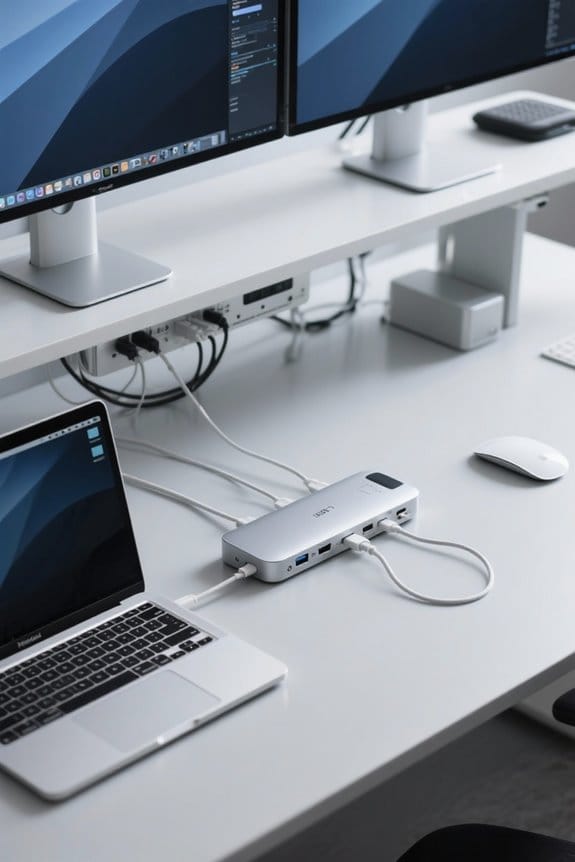

To set up a USB-C docking station for maximum productivity, start by ensuring your laptop has a USB-C or Thunderbolt port that supports power delivery and video output. Connect the dock to a stable power source and your laptop using the provided USB-C cable. Verify that all essential ports, such as USB-A, HDMI, and Ethernet, are available. Adjust your display settings for ideal multi-monitor use, and check for updated drivers to enhance performance. Further details on optimizing your setup await exploration.
Key Takeaways
- Ensure your laptop has a compatible USB-C or Thunderbolt port for power delivery and video output to maximize functionality.
- Organize your workspace for an orderly setup, measuring available space for your docking station and monitor.
- Securely connect your laptop and peripherals, ensuring high-quality cables are used for optimal performance and data transfer rates.
- Configure your display settings to extend or mirror monitors, adjusting resolutions for clarity and smooth cursor movement.
- Regularly update drivers and firmware to enhance performance and troubleshoot connectivity issues with your docking station.
Understanding USB-C Docking Stations
Frequently recognized for their multifunctionality, USB-C docking stations serve as essential hubs for modern computing, integrating several technologies into a single unit. These devices elevate productivity and connectivity by leveraging USB-C’s capabilities for fast data transfer, power delivery, and video output. Supporting multiple peripherals, USB-C docking stations often include ports for USB-A, HDMI, and Ethernet, enabling users to connect several devices simultaneously. Significantly, their power delivery functions allow for simultaneous charging of laptops while data is transferred, thereby streamlining workstation setup with a docking solution. Although most models are compatible with both Windows and macOS systems, users should verify individual device specifications to avoid potential compatibility issues. Many configurations also support external monitors to enhance workspace organization. Leading models offer dual 4K display support with refresh rates up to 60Hz, providing exceptional visual clarity for professional work environments.
Benefits of Using a USB-C Docking Station
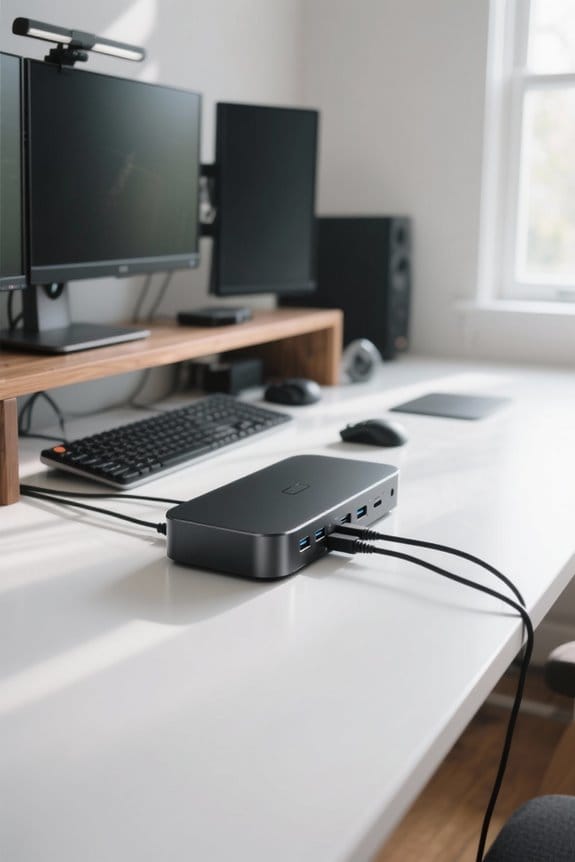
A USB-C docking station offers several advantages that can greatly enhance the overall computing experience for users. These devices provide fast data transfer rates and robust power delivery capabilities, enabling seamless charging and connection of multiple devices simultaneously. Thanks to versatile ports, users can easily connect external displays, including high-resolution monitors, which facilitates multitasking and enhances productivity. Additionally, USB-C docking stations reduce cable clutter by consolidating connections into a single hub, simplifying shifts between work environments. Many models include built-in Ethernet ports for a stable internet connection, ensuring reliable performance when high-speed connectivity is essential. Overall, the seamless integration of various peripherals streamlines workflow, making USB-C docking stations a powerful asset for any productivity-focused user. Modern USB4 docks support dual 4K displays while delivering up to 140W of charging power for enhanced versatility.
Checking Compatibility With Your Laptop
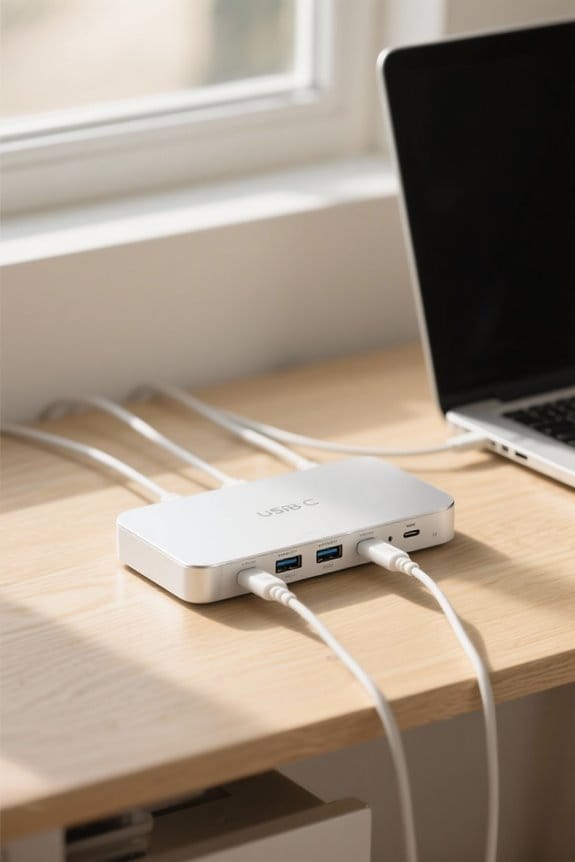
How can one guarantee that a USB-C docking station will work seamlessly with their laptop? First, it is essential to check compatibility with your laptop by confirming it has a USB-C or Thunderbolt port supporting power delivery and video output, specifically DisplayPort Alt Mode. Users should examine laptop specifications on the manufacturer’s website to focus on relevant port types and minimum system requirements, as not all USB-C ports provide video and power delivery capabilities, which may lead to connectivity issues. Additionally, for connecting multiple USB-C peripherals, the docking station should feature ample ports, including HDMI, USB-A, USB-C, and Ethernet. Finally, considering future upgrades can guarantee compatibility with an expanded range of devices for long-term functionality. Most modern docking stations offer 10Gbps data transfer speeds to ensure efficient file handling and smooth performance across connected devices.
Preparing Your Workspace for Setup
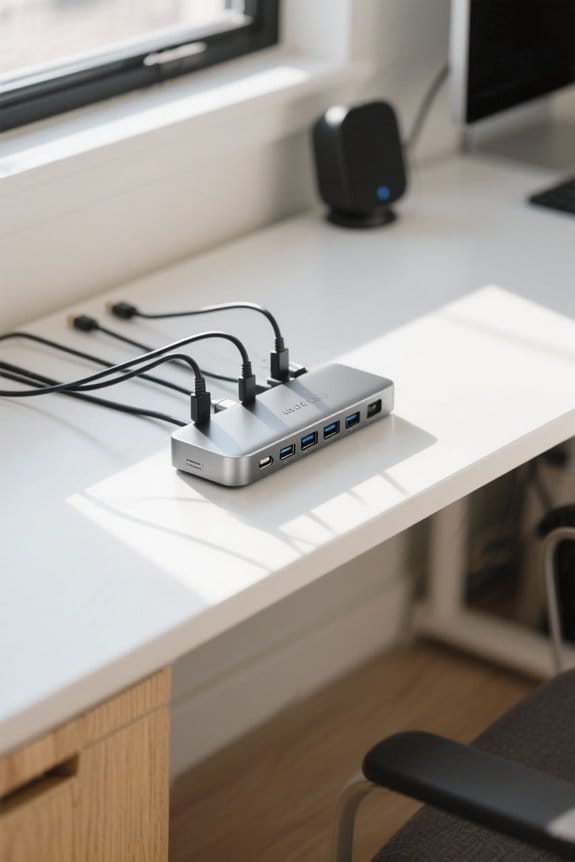
To guarantee an efficient setup of a USB-C docking station, organizing the workspace is essential, as a clutter-free environment can greatly enhance the overall productivity and user experience. Begin by clearing unnecessary items from the workspace to create an organized area specifically for the docking station and its connected peripherals. Ascertain adequate power sources are readily accessible for powering the docking station and charging devices. Measure the available space to confirm the docking station and monitors fit comfortably, allowing for easy access to all ports and cables. Position the docking station on a stable, flat surface that minimizes strain. Finally, arrange the laptop and monitors to optimize ergonomics, aligning screens at eye level to reduce neck strain during prolonged use. Consider using a 65W USB-C charger with your docking station setup to ensure efficient power delivery for most laptop models while maintaining a slim, portable design.
Connecting the Docking Station to Power
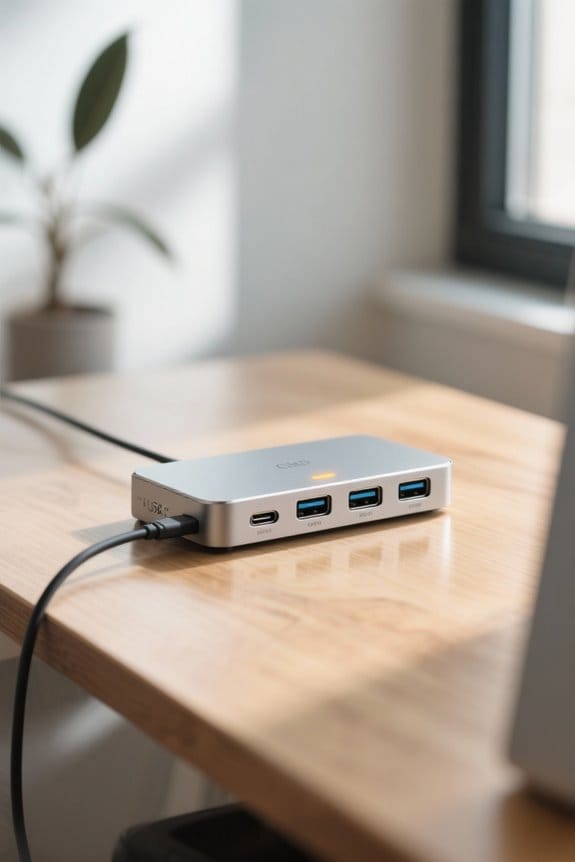
Once the workspace has been adequately prepared, connecting the docking station to power marks the next step in the setup process. Begin by attaching the provided power adapter to the docking station, verifying compatibility and that it offers adequate wattage for both charging your laptop and connected peripherals. Next, plug the power adapter into a reliable power outlet to facilitate smooth operation. After this, check the docking station’s power indicator light; it should illuminate, confirming that it is receiving power. Most Anker docking stations provide 100W pass-through charging capabilities to efficiently power connected devices. Successful completion of these steps is vital, as it enables the docking station to deliver peak performance. Finally, users should verify that their laptop can recognize the docking station, setting the stage for effective connectivity and functionality.
Connecting Your Laptop to the Docking Station
Connecting a laptop to the USB-C docking station requires careful attention to detail to guarantee peak functionality and seamless integration. Users must securely connect their laptop by utilizing the provided USB-C cable that attaches to the laptop’s USB-C port. It is essential to check that the docking station is powered on, as this facilitates both power delivery and proper device recognition. In addition, laptops should possess USB-C ports that support data transfer and power delivery to maximize performance, as not all ports have these capabilities. After establishing the connection, users should confirm that their laptop recognizes the docking station by checking the device manager or system tray for notifications, paving the way for the connection of external monitors and additional devices simultaneously. Modern USB-C docks like the Plugable UD-ULTCDL offer 100W power delivery to ensure uninterrupted operation during intensive workloads.
Attaching External Monitors
Attaching external monitors to a USB-C docking station expands workspace capability and enhances productivity for users. To achieve this, verify the docking station supports multiple monitor connections via HDMI or DisplayPort ports. High-quality cables, such as HDMI 2.0 or DisplayPort 1.4, are vital for maintaining signal integrity and achieving ideal resolution, including support for 4K displays. Once connected, users must access their laptop’s display settings to configure monitors, choosing between extending or mirroring displays. This process allows for adjusting the resolution and orientation of each monitor to meet specific workflow needs. Additionally, if the docking station supports power delivery, it’s important to confirm that it provides sufficient wattage to charge the laptop while monitoring external displays. For optimal performance, select docking stations that offer dual 4K outputs to ensure the highest quality visual experience across multiple screens.
Connecting Peripherals and Accessories
To guarantee seamless integration of various peripherals with a USB-C docking station, one must first verify that the station is equipped with a sufficient array of ports, including USB-A, HDMI, DisplayPort, and Ethernet, which are essential for connecting devices like external monitors, printers, and network equipment. Utilizing high-quality cables, especially for HDMI and DisplayPort connections, assures maximum performance and data transfer rates; USB 3.0 ports offer up to 10 Gbps. Each connected peripheral, such as keyboards, mice, and webcams, enhances productivity by maintaining organization. For multi-monitor setups, connecting monitors properly facilitates synchronization. Check that each device is powered and correctly connected before booting the laptop, consequently enabling automatic driver installation and smooth functionality across all peripherals. Modern fast charging capabilities allow devices to reach up to 80% battery capacity within 30-47 minutes while connected through the docking station.
Configuring Display Settings for Optimal Use
Properly configuring display settings is essential for ensuring ideal use of a USB-C docking station with multiple connected monitors. Users should access the display settings on their operating system, allowing them to configure how each monitor functions, whether by extending or mirroring the display for enhanced productivity. To achieve the best visual experience, it is vital to set the resolution for each monitor according to its specifications, thereby ensuring clarity and optimal screen real estate. Additionally, arranging the display settings to reflect the physical layout of the monitors facilitates smooth cursor movement across screens. On Windows, navigate to ‘Settings’ > ‘System’ > ‘Display’, while macOS users should go to ‘System Preferences’ > ‘Displays’ for precise adjustments. For optimal performance, look for docking stations that support dual 4K@60Hz output to ensure the highest quality visual experience across multiple displays.
Installing Required Drivers
Ensuring that the USB-C docking station operates at its full potential requires careful attention to driver installation. Before utilization, it is essential to download and install the latest drivers from the manufacturer’s website, which guarantees compatibility and performance. While most operating systems automatically detect the docking station and install necessary drivers, manual installation may be required for accessing advanced features. For ideal use, users should consult the device’s user manual for specific driver installation instructions. Regular updates are essential, as new releases can enhance functionality, fix bugs, and improve features like high-speed data transfer and multiple monitor support. Consequently, installing the necessary drivers is imperative for maximizing the docking station’s capabilities in various work environments. Proper driver installation helps maintain safety protections against overheating and over-current issues that could damage connected devices.
Testing Your Setup
Effective testing of a USB-C docking station involves systematically verifying the functionality of each connected device to guarantee seamless integration and peak performance. Begin by checking each peripheral, confirming that they are recognized by the system, and utilize display settings to arrange multiple monitors, adjusting resolutions accordingly. Test the power delivery feature by observing if the laptop charges effectively, ensuring the dock meets specified wattage requirements. For network connectivity, connect an Ethernet cable and run a speed test to check for stable internet access. If any device fails to function as expected, verify that drivers are up to date and reboot both the laptop and docking station to refresh connections, ensuring optimal operation across all connected devices.
Troubleshooting Common Issues
Addressing common issues with a USB-C docking station can considerably enhance user experience and device functionality. Users should verify that drivers are fully updated, as outdated drivers can cause connectivity issues across various laptop models. Secure connections are crucial; loose cables or improper connections may prevent devices from being detected or functioning correctly. If performance becomes sluggish or unresponsive, restarting both the laptop and the docking station can often reset the connection. For network connection problems, verifying the Ethernet cable’s fit into the docking station and updating network drivers is imperative. Additionally, if monitors are not displaying correctly, reviewing the display settings in the operating system is necessary to verify that multi-monitor support is enabled and the docking station is selected as the primary output.
Customizing Your Docking Station Experience
With the foundation of troubleshooting laid, refining the user experience through customized settings on a USB-C docking station becomes the next significant focus. Users should begin by customizing display settings to extend or mirror their monitors, tailoring resolution and orientation for enhanced productivity. This adjustment is particularly beneficial for managing diverse content across screens, improving multitasking efficiency. Additionally, managing audio settings within system preferences guarantees peak sound quality during video calls and media playback. Organizing connected peripherals within the docking station’s interface can streamline access, enabling quicker troubleshooting and smoother changes between devices. Utilizing profiles for various scenarios, such as work or leisure, facilitates seamless changes and maximizes the docking station’s overall functionality, ultimately enhancing the user experience.
Enhancing Your Workflow With Multi-Monitor Support
How can a multi-monitor setup transform workplace efficiency? Utilizing multi-monitor support with a USB-C docking station enables professionals to connect up to three external displays simultaneously, markedly enhancing productivity by enlarging workspace. Users can extend their display settings, allowing simultaneous document editing on one screen while referencing research on another, which optimizes multitasking and minimizes window switching. Further, with high-resolution support—up to 4K—on these connected monitors, visuals remain sharp, critical for tasks like graphic design and video editing. Customizable display orientations and resolutions through the docking station can be tailored to meet specific workflow needs. Studies show that leveraging such setups can lead to a 20-30% productivity increase, emphasizing the value of higher screen real estate.
Frequently Asked Questions
Can a Docking Station Improve Performance?
A docking station can considerably improve performance by enhancing USB-C benefits, enabling multi-monitor setups, providing superior peripheral connectivity, ensuring enhanced charging, organizing workspace, aiding laptop cooling, and fostering performance consistency for remote work efficiency.
Can I Leave the Docking Station Plugged in All the Time?
Yes, leaving the docking station plugged in is generally safe, promoting efficient power management and device charging. Users should guarantee cable organization, monitor heat dissipation, and check peripheral compatibility for ideal connectivity options and laptop safety.
Is It Bad to Leave a Laptop Plugged Into a Docking Station?
Leaving a laptop plugged into a docking station can be like keeping a car idling; while it may initially seem beneficial, heat management and power management concerns can impact laptop battery lifespan and safety based on usage habits.
What Are the Disadvantages of a Docking Station?
Docking stations present disadvantages such as compatibility issues, limited port availability, power delivery limitations, potential overheating concerns, and cable management challenges. Additionally, cost versus benefits and driver update requirements might hinder their practical application in some environments.


